
PgAdmin 4 Setup to Connect to the Relevant Data Warehouse
This article details the steps needed to connect to the data warehouse with SSL certificates. If you have not yet received your individual SSL certificates via encrypted email, ask your health center’s Relevant lead to send an email to support@relevant.healthcare requesting connection to the data warehouse.
- Add a new server
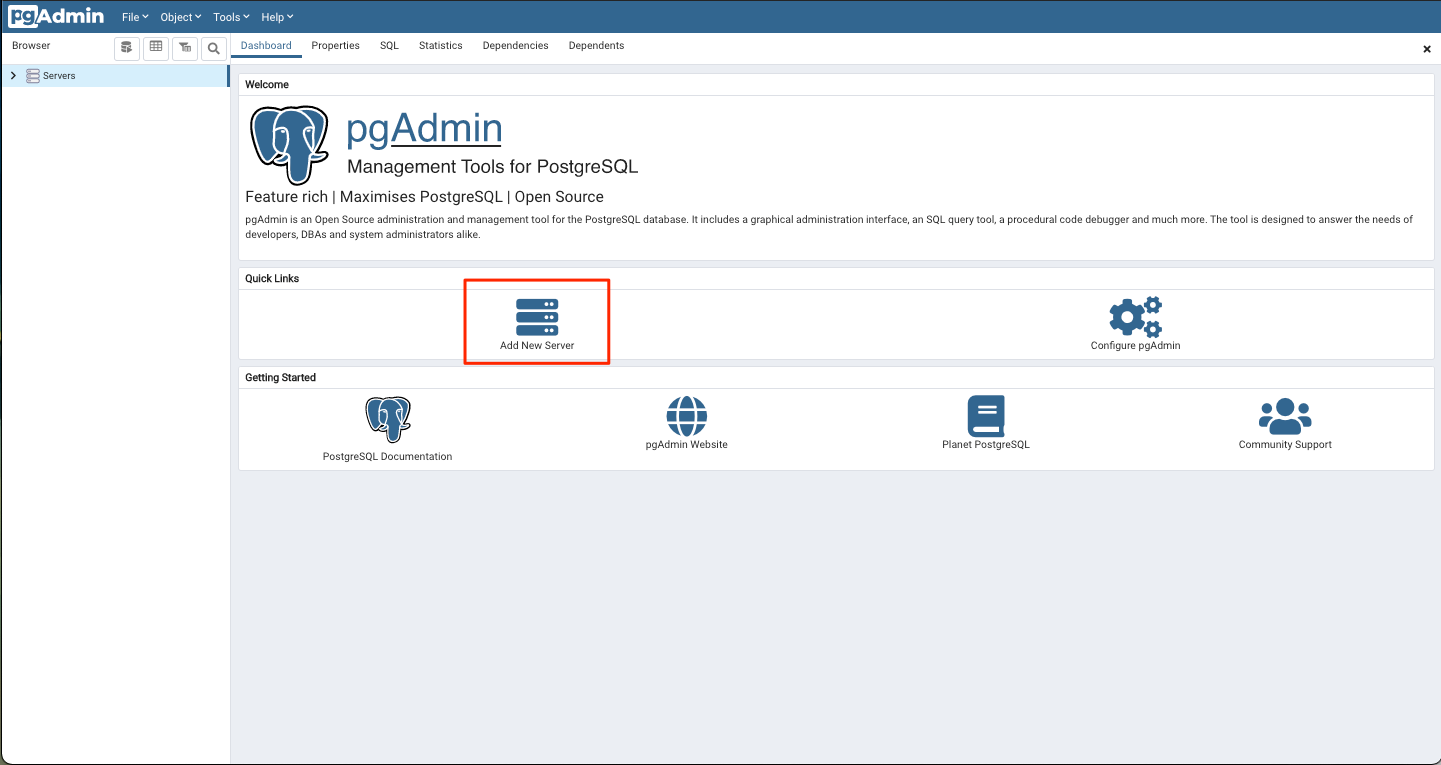
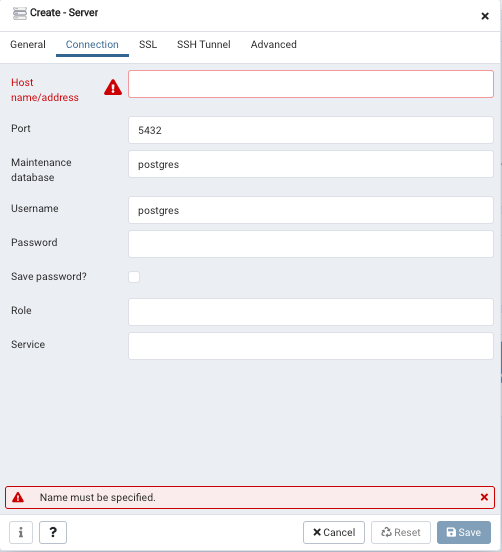
- Fill in the connection information, including the Host, Database, and Username. Use your Relevant URL (e.g. your-healthcenter.relevant.healthcare) as the host field.
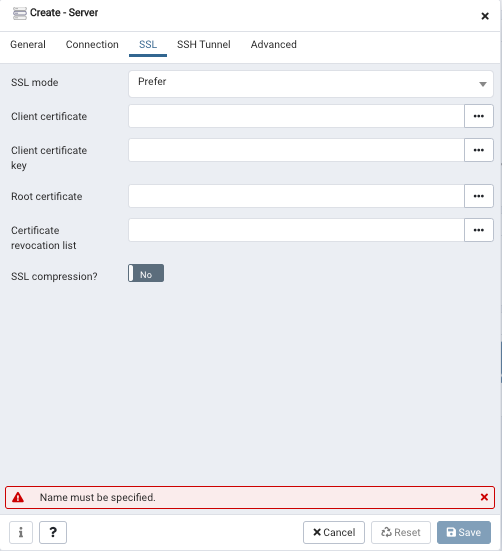
- Click on the SSL tab.
- Check the “Use SSL box.”
- Tell PgAdmin where to find the Parameters. These are the three files that you downloaded in Step #1.
- CA Certificate is the root.crt
- Client Certificate is the client.crt
- Client Private Key is the client.pk8
- Change the SSL mode to “prefer”
4. Test the connection and run a query.
If the connection fails, reach out to your health center’s IT team to help troubleshoot. If your IT team needs additional assistance, contact us at support@relevant.healthcare and we’ll be happy to help.