
Creating Report Parameters
Overview
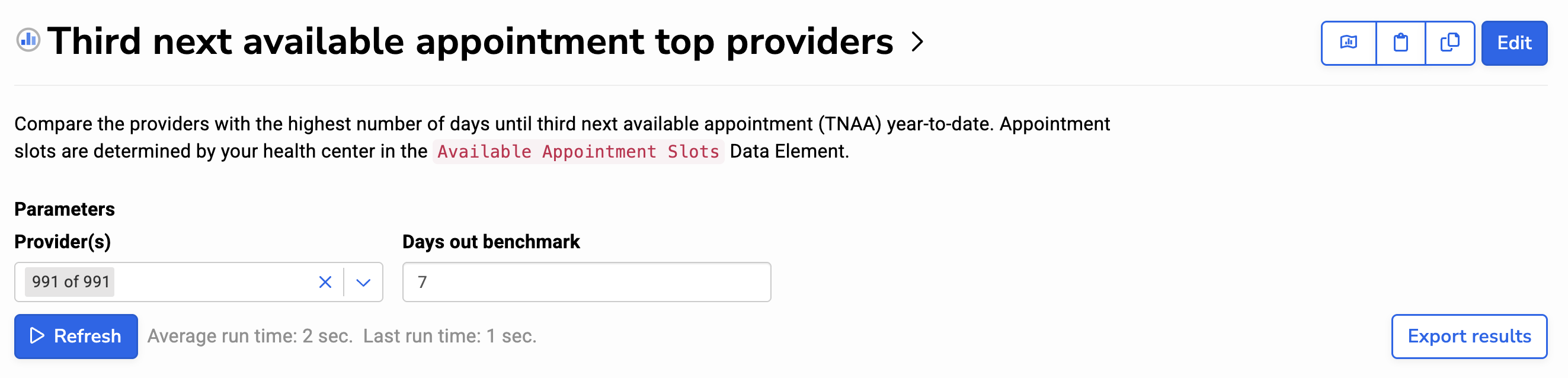
Report viewers can make use of parameters (aka “filters”) to narrow down a report’s results. Report authors control what parameters are available on a given report and how they behave. In the below example, the parameters are “Provider(s)” and “Days out benchmark.”
Adding a Parameter to a Report
-
While editing a report, click “Add Parameter”.

-
Choose a name, label, parameter type, and default value.
Name: how you’ll refer to the parameter within the report’s SQL
Label:the label that will appear for report viewers
Type: defines input options (Provider, Payer, Date, String, etc.)
Default: the initial parameter value when a report is opened
-
Incorporate the parameter into the report’s SQL by referring to the parameter name using double curly braces.
For example, if your parameter name is “providers”, your report SQL might look like this:
SELECT visits.patient_id, visits.provider_id, visits.visit_date
FROM rdm.visits
WHERE visits.provider_id IN ( {{providers}} )
When the report runs, Relevant will replace the {{providers}} placeholder with a list of the provider IDs selected by the user.
Note: the curly brace substitution is not standard SQL; this functionality is provided by Relevant. External query editors generally will not understand these braces, at least not without some configuration. DataGrip can be configured to do so: DataGrip Settings > Database > Query Execution > User Parameters > Add parameter pattern > add the following: \{\{(.*?)\}\}. See this DataGrip article for details.
Parameter types
RDM-based types
Relevant comes with a variety parameter types that represent specific concepts—such as Providers, Payers, Measures, or Races—where the options for users are defined in the Relevant Data Model.
All of these parameter types function similarly: report viewers choose one or more options by name from the dropdown, and the SQL receives the corresponding IDs.
String
String parameters can be used for any type of text input.
Date
The Date parameter supports a wide range of options: fixed dates, date ranges, and relative dates, like “last week” or “calendar year”.
Here are some examples of how a user can choose between these options:
Because a user can choose a single date or a date range, the standard parameter syntax, {{parameter_name}}, won’t work on its own:
SELECT visits.visit_date
FROM rdm.visits
WHERE visits.visit_date = {{visit_date}} -- this won't work for Date params
Instead, use the date_filter function, which dynamically generates the appropriate SQL based on the user’s date selection.
The function should be placed within double curly braces in the WHERE clause:
date_filter('column_name', parameter_name)
-
column_name: the name of a date column, e.g.'visits.visit_date', in quotesNote: other SQL that can be compared with a date is also acceptable, e.g.
'lab_datetime::date' -
parameter_name: the name of the Date parameter, e.g.visit_date
Here is an example of how the date filter parses the user’s selection:
SELECT visits.visit_date
FROM rdm.visits
WHERE {{ date_filter('visits.visit_date', visit_date) }}

-- The above will be converted to working SQL depending on the user's selection.
-- Here are some scenarios:

-- If the user chooses "On 6/1/2026", the generated SQL will be:
-- WHERE visits.visit_date = '2026-06-01'

-- If the user chooses "Between 6/1/2026 and 7/15/2026", the generated SQL will be:
-- WHERE visits.visit_date BETWEEN '2026-06-01' AND '2026-07-15"

-- If the user chooses "Before 6/30/2026", the generated SQL will be:
-- WHERE visits.visit_date < '2026-06-30'
Using min and max with Date parameters
The min and max functions let you extract the start or end of a user-selected date range ( Note: parameter_name refers to the name of the Date parameter defined in your report, e.g. visit_date):
min(parameter_name): earliest date in the selectionmax(parameter_name): latest date in the selection
These functions return values that may be:
- A date string (
VARCHAR), e.g.'2026-06-01'- This can be cast to
DATEorTIMESTAMPtypes
- This can be cast to
-InfinityorInfinity(for open ended ranges)NULL(if no date was selected)
The return values can then be used with <, =, IS, and other comparisons.
Here is an example of how the date is parsed based on the user’s selection:
SELECT {{ min(my_date_param) }} AS "start", {{ max(my_date_param) }} AS "end"

-- If the user choses "On 6/1/2026", the output will be:
-- Start: '2026-06-01'
-- End: '2026-06-01'

-- If the user choses "Between 6/1/2026 and 7/15/2026", the output will be:
-- Start: '2026-06-01'
-- End: '2026-07-15'

-- If the user choses "Before 6/30/2026", the output will be:
-- Start: '-Infinity'
-- End: '2026-06-30'

-- If the user choses "Empty", the output will be:
-- Start: NULL
-- End: NULL
Here is a real-world example - you can select all patient IDs with screenings over the current rolling year, before a maximum date:
SELECT patient_id
FROM custom.relevant_screenings
WHERE orderdate :: DATE >= CURRENT_DATE - INTERVAL '12 months'
  AND orderdate :: DATE < {{ max(visit_date) }} :: DATE
Note: The Date parameter was upgraded in July 2025 to support more flexible, relative options. Previously, this parameter was called “Date”. That older version is still available, but is now named “Fixed Date” (see below).
Fixed Date
Fixed Date parameters allow users to choose a single calendar date, or the relative date of “today”. This parameter type can be implemented in SQL with double curly braces, following the same pattern as other parameter types.
Note: This parameter was previously named Date, but has since been renamed to Fixed Date following the July 2025 upgrade to avoid confusion with the more powerful Date parameter. Older reports will often use Fixed Date parameters, even when Date would provider a better experience. We encourage you to upgrade these parameters to use Date wherever it will be helpful for users.
Choosing between Date and Fixed Date
In most cases, we recommend using Date. It provides a wider variety of options to users, and the ability to set relative defaults (for example, to have a report’s default date range be “Last week”) is powerful.
Use the Fixed Date parameter only when:
- You want to force the report viewer to choose a single date only, or
- You need to perform specialized date math based on the value of the user’s selection—for example,
WHERE visits.visit_date > {{visit_date}} - INTERVAL '17 months 4 days'.
Custom parameter types
If none of the standard parameter types fit your use case, it’s also possible to create custom parameter types.