
Dashboards Overview
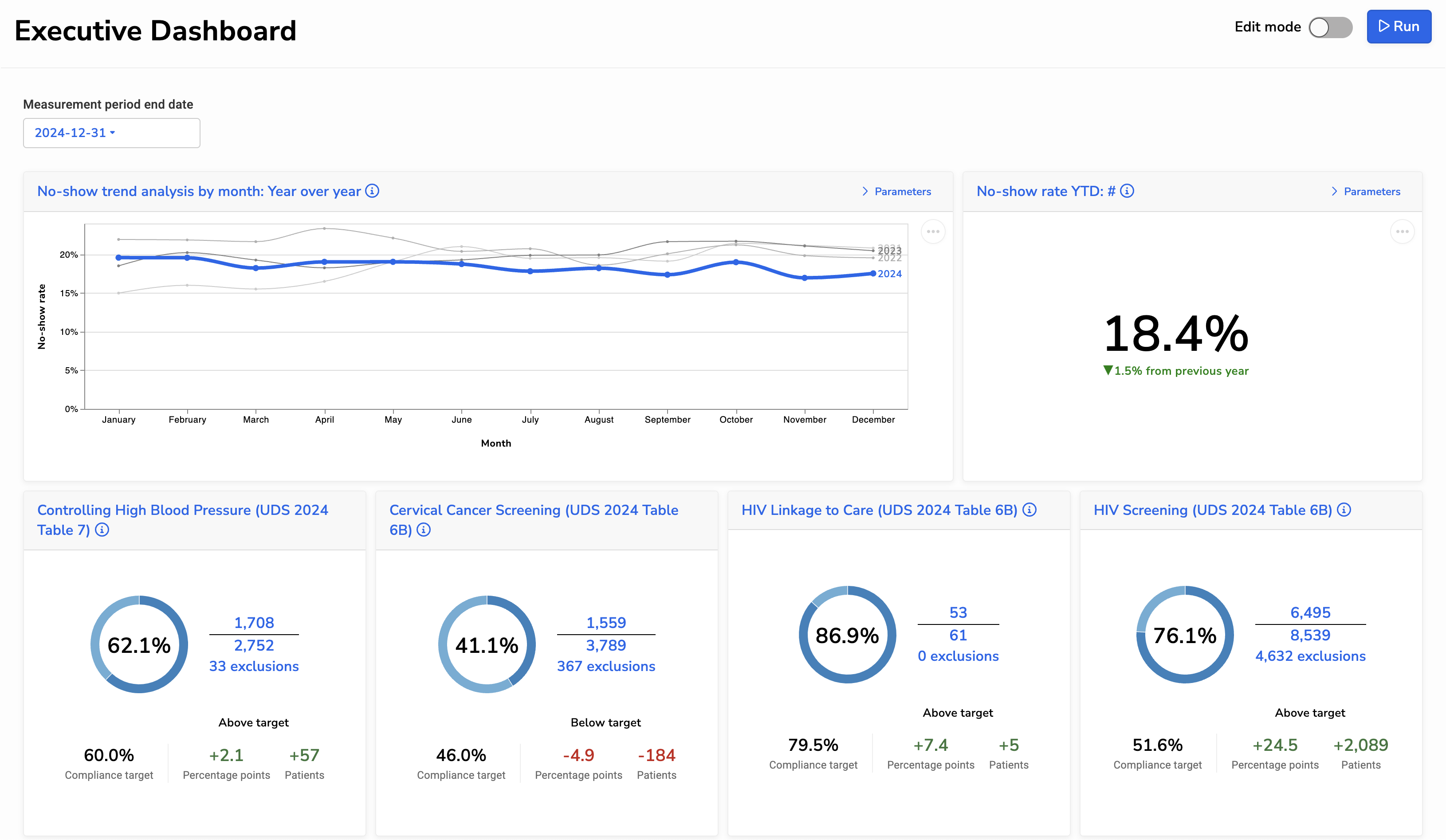
Dashboards allow users to view related data on a single screen, including Reports, Quality Measures, and text.
Viewing a dashboard
Navigate to Reports > Dashboards, then click on a dashboard.
When you open a Dashboard, it automatically runs and loads data. You can adjust Dashboard parameters, which apply to multiple Dashboard tiles, or set parameters for individual tiles.
Click “Run” or press CTRL + ENTER to update the Dashboard with your changes.
Creating a dashboard
Navigate to Reports > Dashboards, then choose “New Dashboard”. You can choose to create a new dashboard from scratch, or start with a template from our library.
Library dashboards
PHI permissions
If a Dashboard contains reports with PHI, only users with PHI access and/or a permitted IP address will be able to view it.
Frequently asked questions
Q: If Relevant updates a standard report, will that update be reflected on dashboards?
A: Yes. When Relevant updates a standard report, any dashboards that use the standard report will automatically see those changes come through.
Q: We imported a library dashboard. If Relevant updates the library version, will our version be updated?
A: No. As with other library items, imported dashboards do not automatically update when Relevant updates the library version. This is intentional, because health centers typically start with a library dashboard but then customize it to meet their needs.