Dashboard Tiles
Dashboard tiles are the building blocks of a Dashboard. There are two types of Dashboard tiles:
- Report tile
- Quality Measure tile
Report tiles
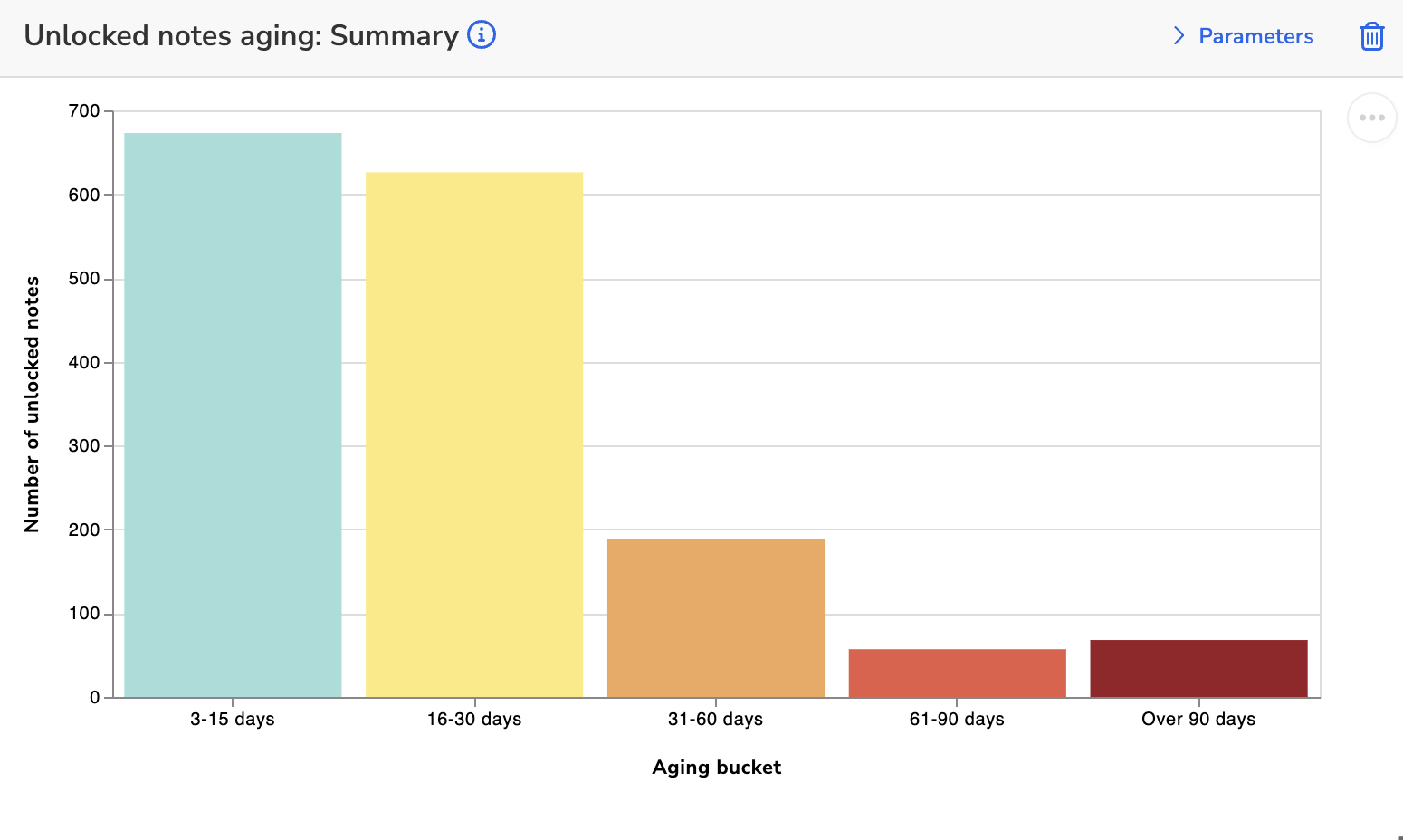
Report tiles display a single view from a “Published” or “Published (hidden)” report. You can set parameters specific to the tile or link them to a shared Dashboard Parameter for consistency across the Dashboard.
Quality Measure tiles
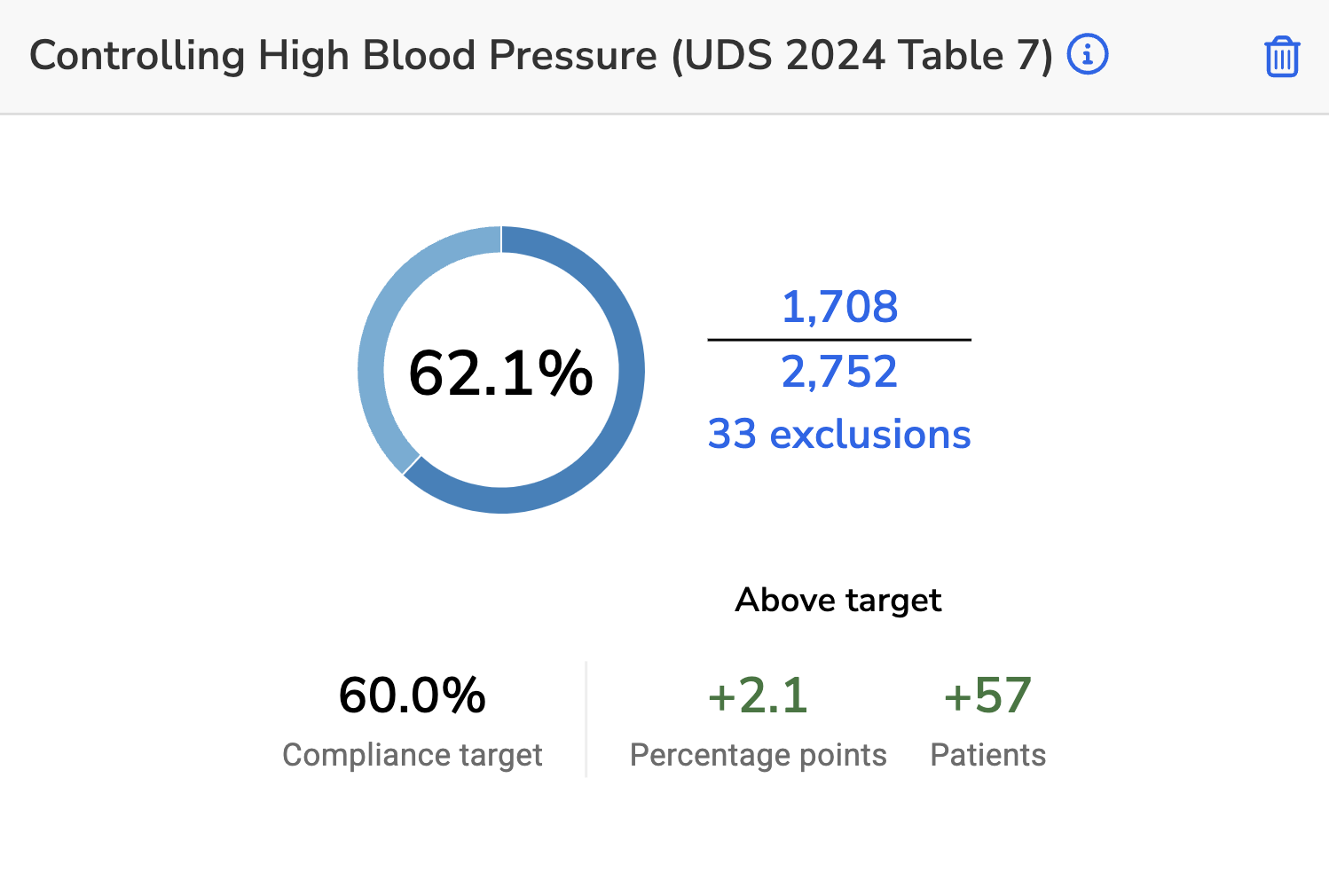
Quality Measure tiles display visualizations from the Quality Measures module. You can select any enabled, published measure to include in your Dashboard. Quality Measure filters can be linked to a shared Dashboard Parameter, however, tile-specific filters are not yet supported.
Tile definition and details
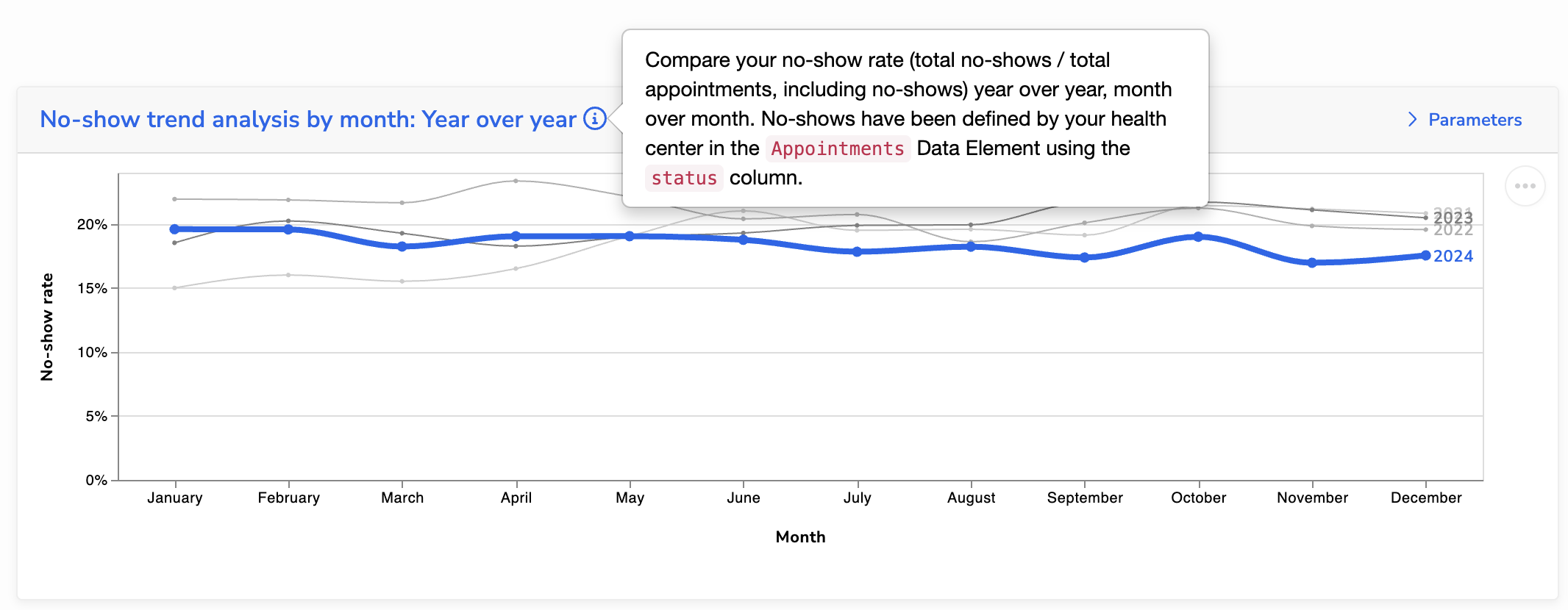
When viewing a Dashboard, you can see the source of each tile by clicking its name. The description of the Report or Quality Measure will appear in the info icon next to the tile name.
Adding a new tile
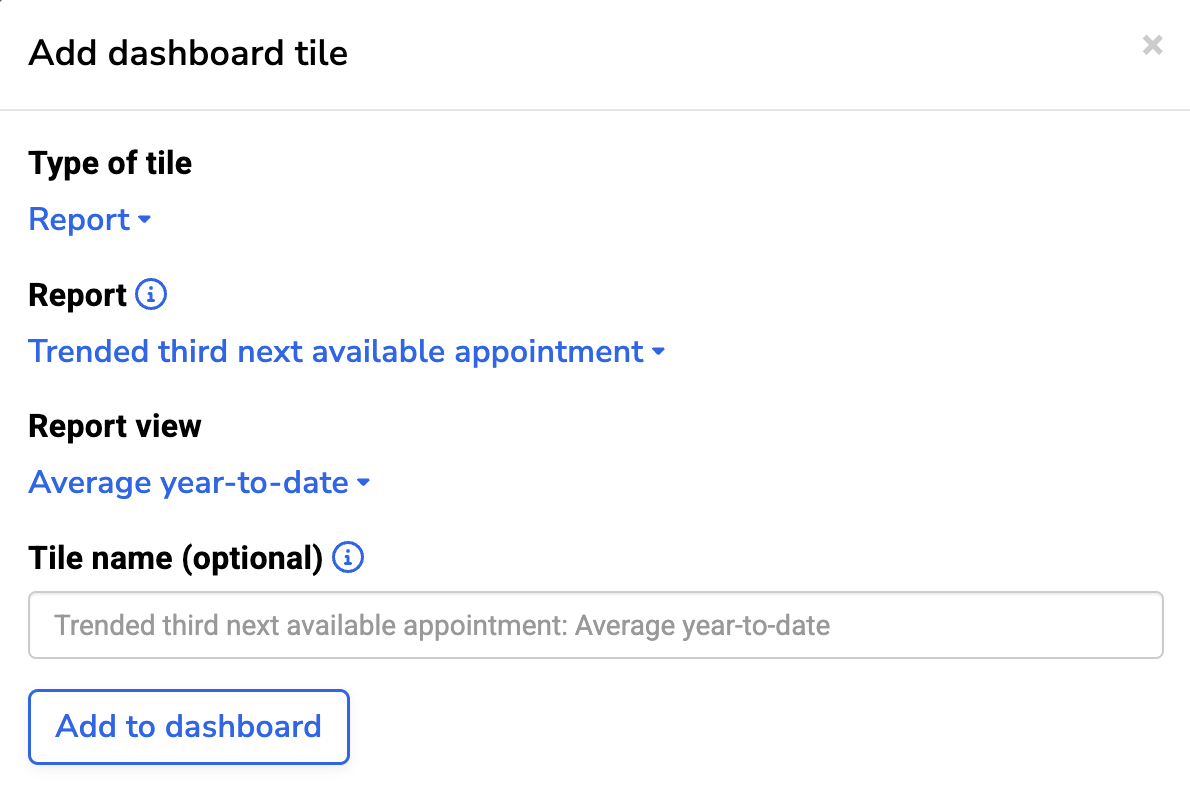
To add a new tile:
- Toggle Edit mode.
- Click “Add tile”.
- Select your desired tile type.
- Select the report and view or Quality Measure that you want to display.
- Name your tile. You can enter a custom name or use the default:
- Report tiles use “Report name: View name”.
- Quality Measure tiles use the Quality Measure name.
- Click “Add to dashboard” to finish.