
Dashboard Parameters
Dashboard Parameters link individual tile parameters so they can be set with the same values across a Dashboard. This ensures consistency when filtering data across multiple tiles.
Adding or editing a Dashboard parameter
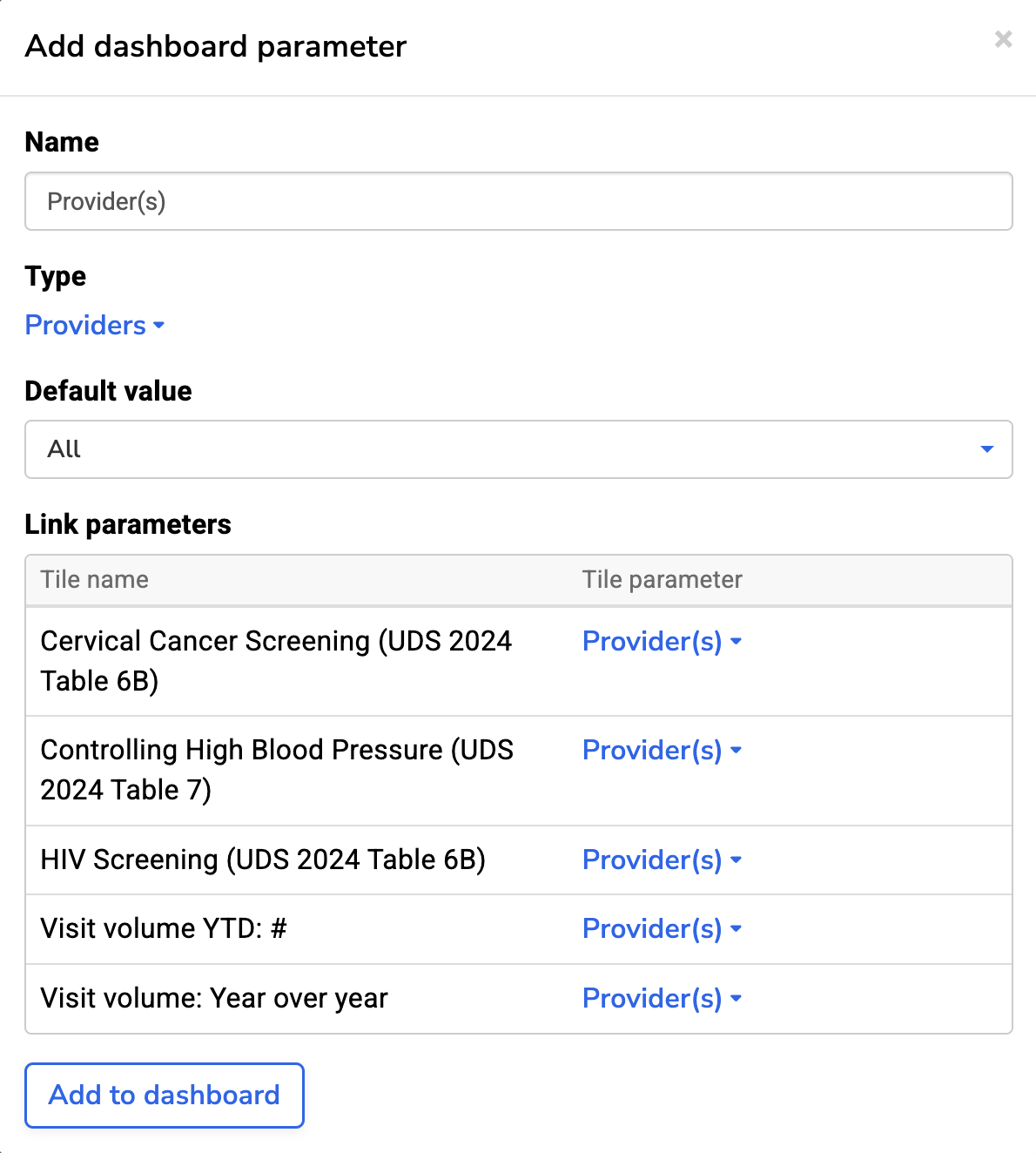
To add or edit a Dashboard Parameter, enter edit mode and click “Add dashboard parameter”. You’ll then:
- Name the Dashboard parameter.
- Choose a Dashboard parameter type. The list will only show parameter types that are used in your Dashboard tiles.
- Set a default value (optional).
- Link individual tiles to the Dashboard parameter. Pro-tip: if the Dashboard parameter name matches existing, individual tile parameters, Relevant will link them automatically.
Tiles linked to a Dashboard Parameter will always use the same value. If a tile parameter isn’t linked, it can still be set individually on that tile.
Sharing and bookmarking with parameters
Dashboard parameters are saved in the URL so you can bookmark or share links and keep the same parameter values. This makes it easy to revisit filtered views or send others at your health center a consistent view of the data.