
About Visit Planning
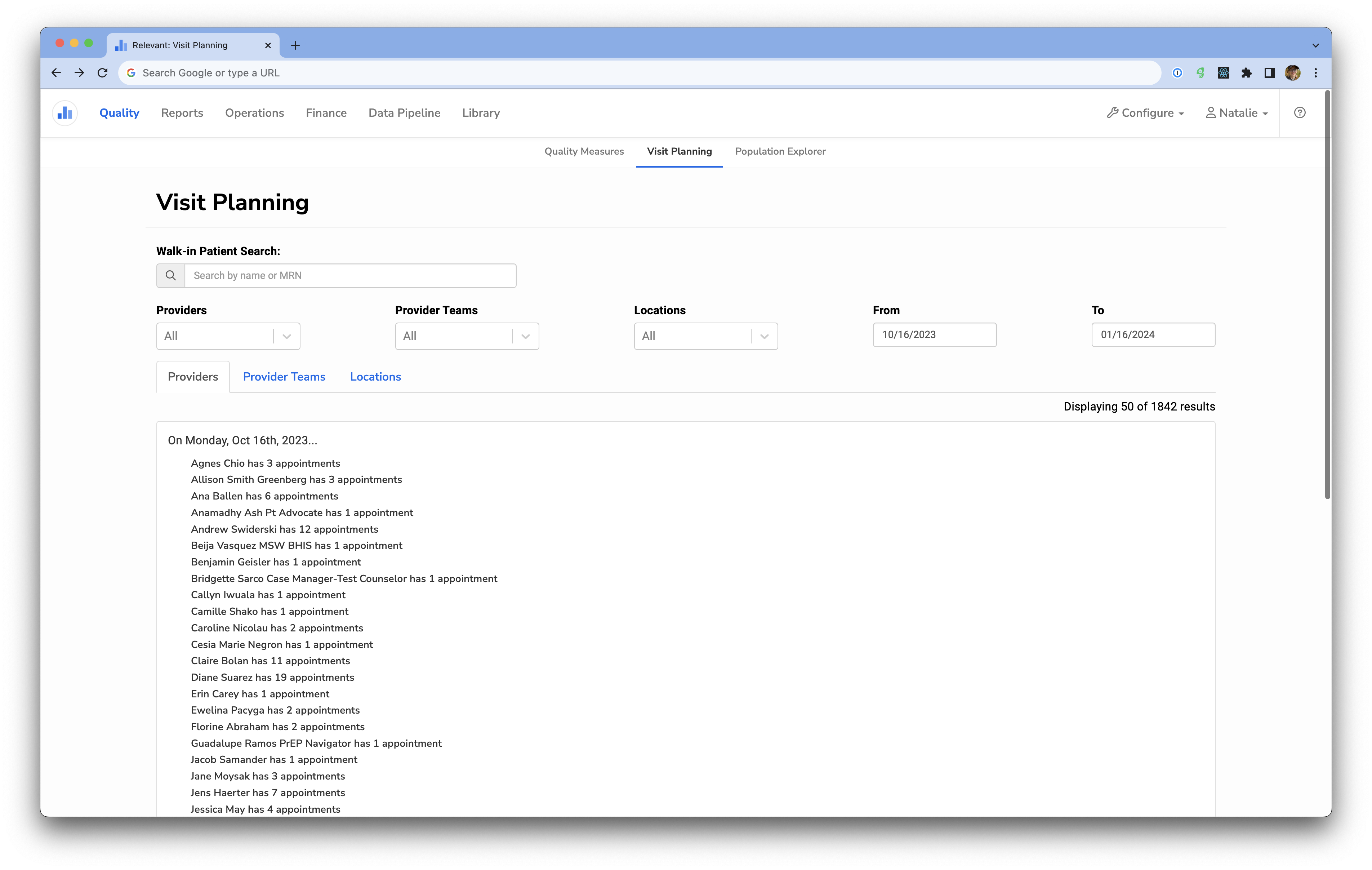
The Visit Planning module provides an overview of upcoming visits by provider, functioning like an appointment list to inform pre-shift huddles and pre-visit planning efforts.
After clicking into Visit Planning, you’ll see an overview of the number of visits per provider, starting with the current day. Filters allow you to adjust this view by provider, provider team, and appointment date range.
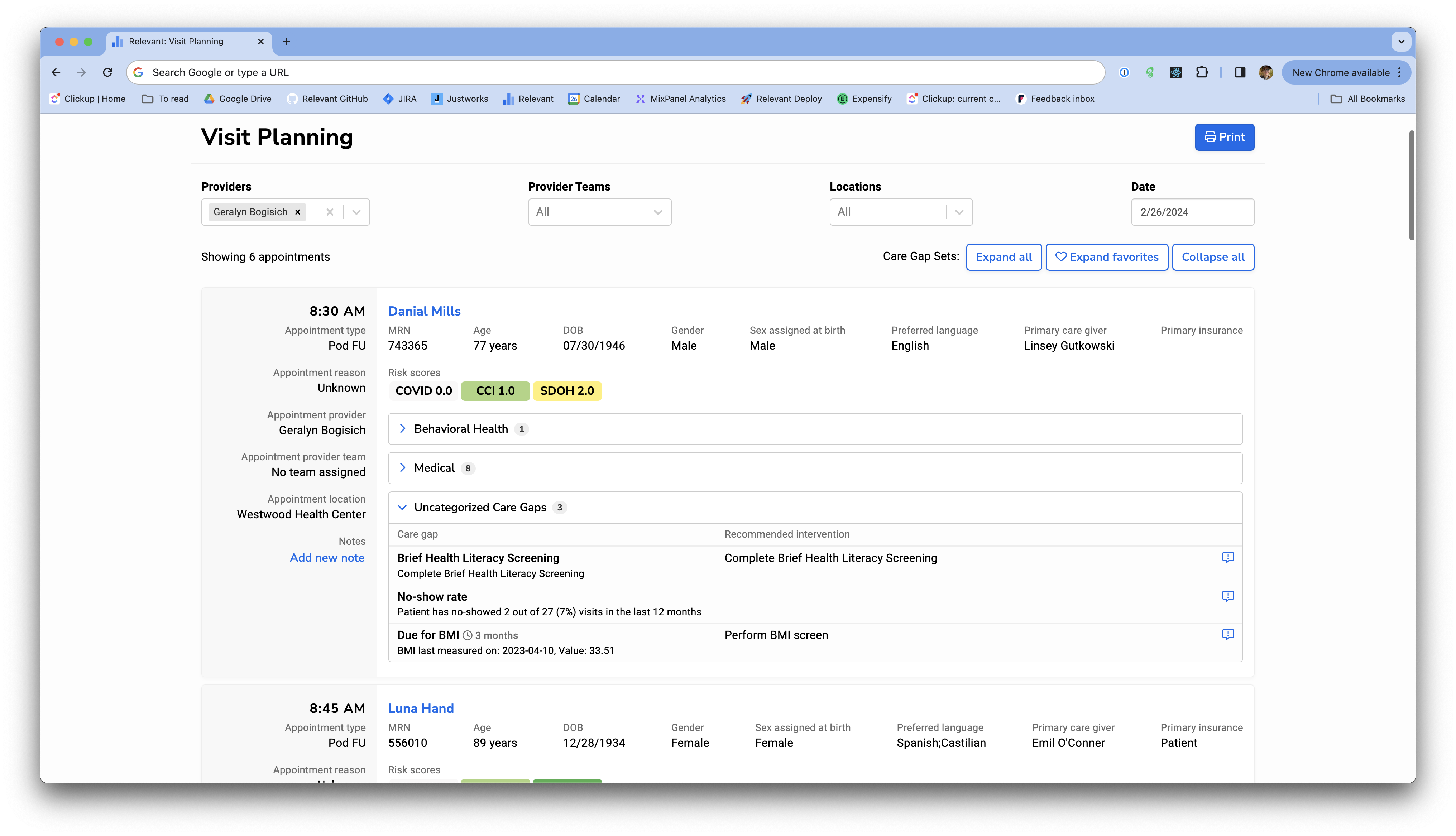
Drilling down on a provider’s schedule provides more detailed information about that provider’s appointments for the day, including when and why the patient is coming in, and the patient’s specific needs.
Same-day appointments and walk-ins
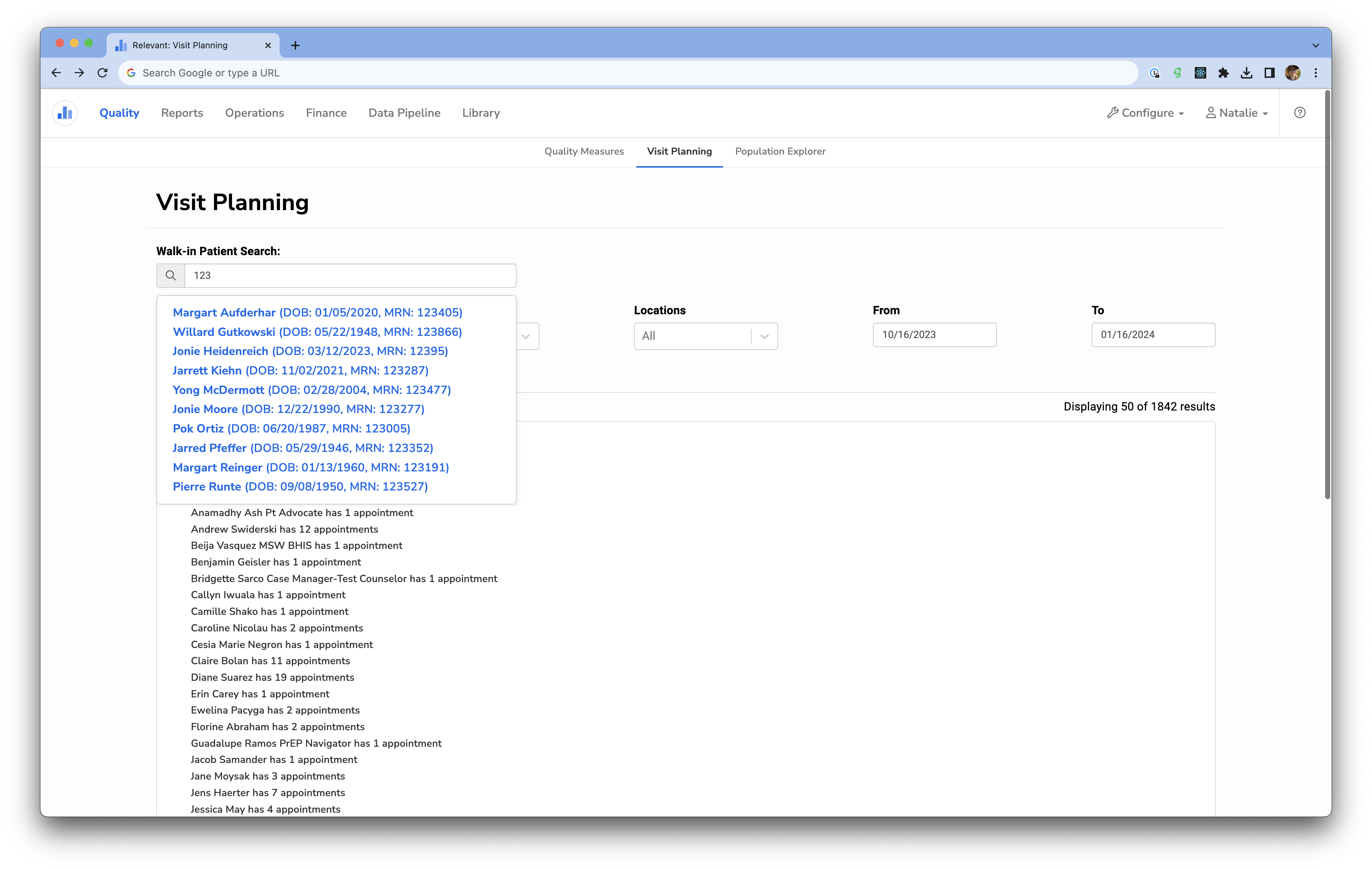
Because the data used to populate Visit Planning is extracted from your EHR on a nightly basis, Visit Planning will not always be up-to-date for same-day appointments and cancellations. To look up a patient who wasn’t previously scheduled, use the Walk-in Patient Search from the overview screen.
Adding notes
Users collaborating on Visit Planning can add notes to a patient’s appointment card. These notes are visible to other users accessing this patient’s appointments in Visit Planning.
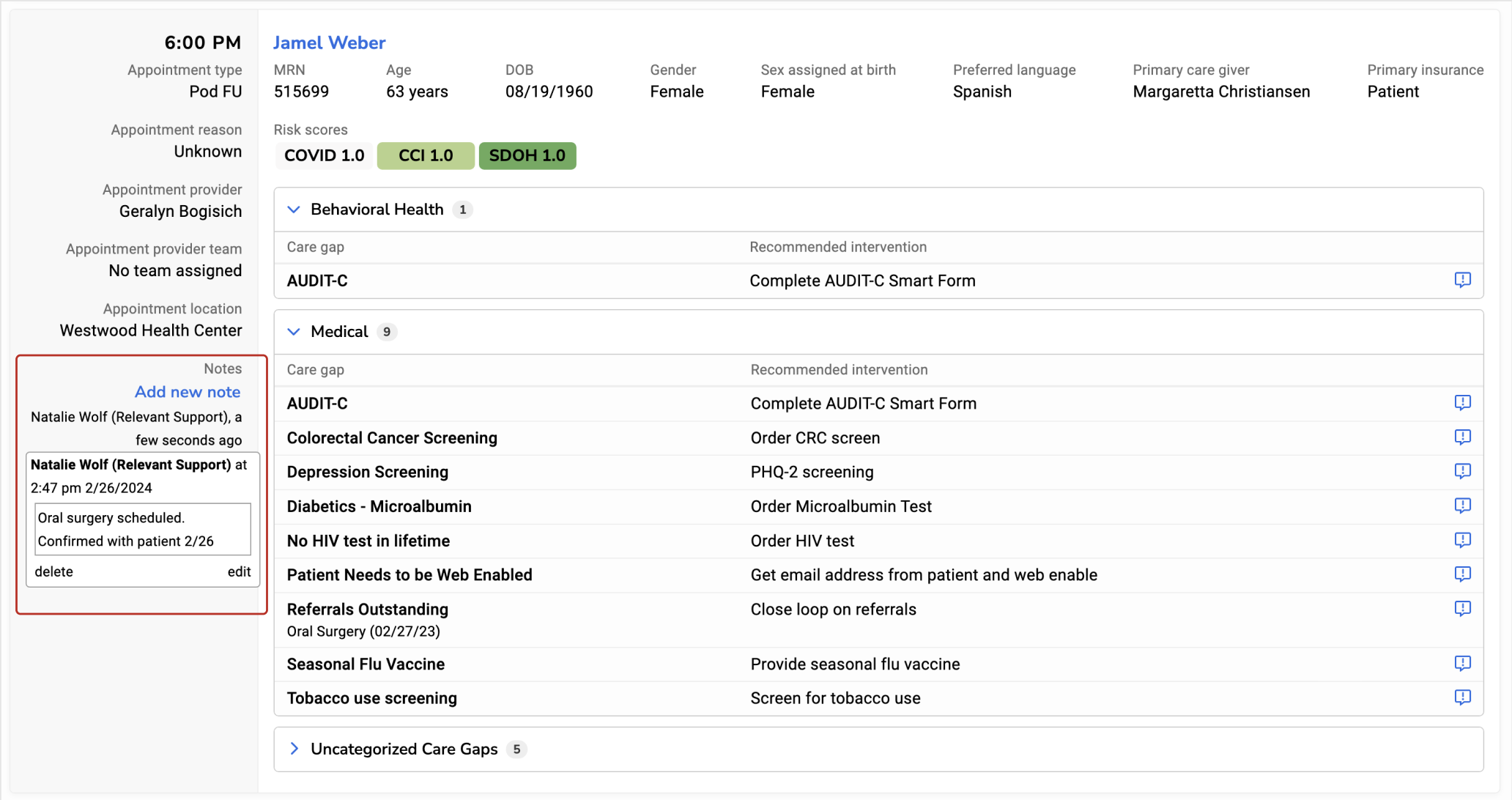
Users can view the content of patient notes by hovering over them in the appointment card margins. Any user can delete other user’s notes as they become resolved or outdated. The note creator is also able to edit their own notes.
To add a new note, users can select ‘Add new note’ at the top of the margin. This note will be appended to the notes list after hitting ‘Save’.
Notes will be associated with patients, rather than specific appointment slots, types, or providers. This means that if a patient’s appointment is rescheduled, the patient notes will carry over to their next appointment. Patient notes do not expire; therefore, notes will carry over to future appointments as well. The user must delete notes that are no longer relevant. Deleted notes will still be accessible in the Relevant data warehouse in the table `rdm.appointment_notes`.
Users who wish to print their Visit Planning sheets can choose to do so with or without notes.
Printing
If you’d like to print out a provider’s visits for the day, clicking the print button from a provider’s schedule will optimize the format.
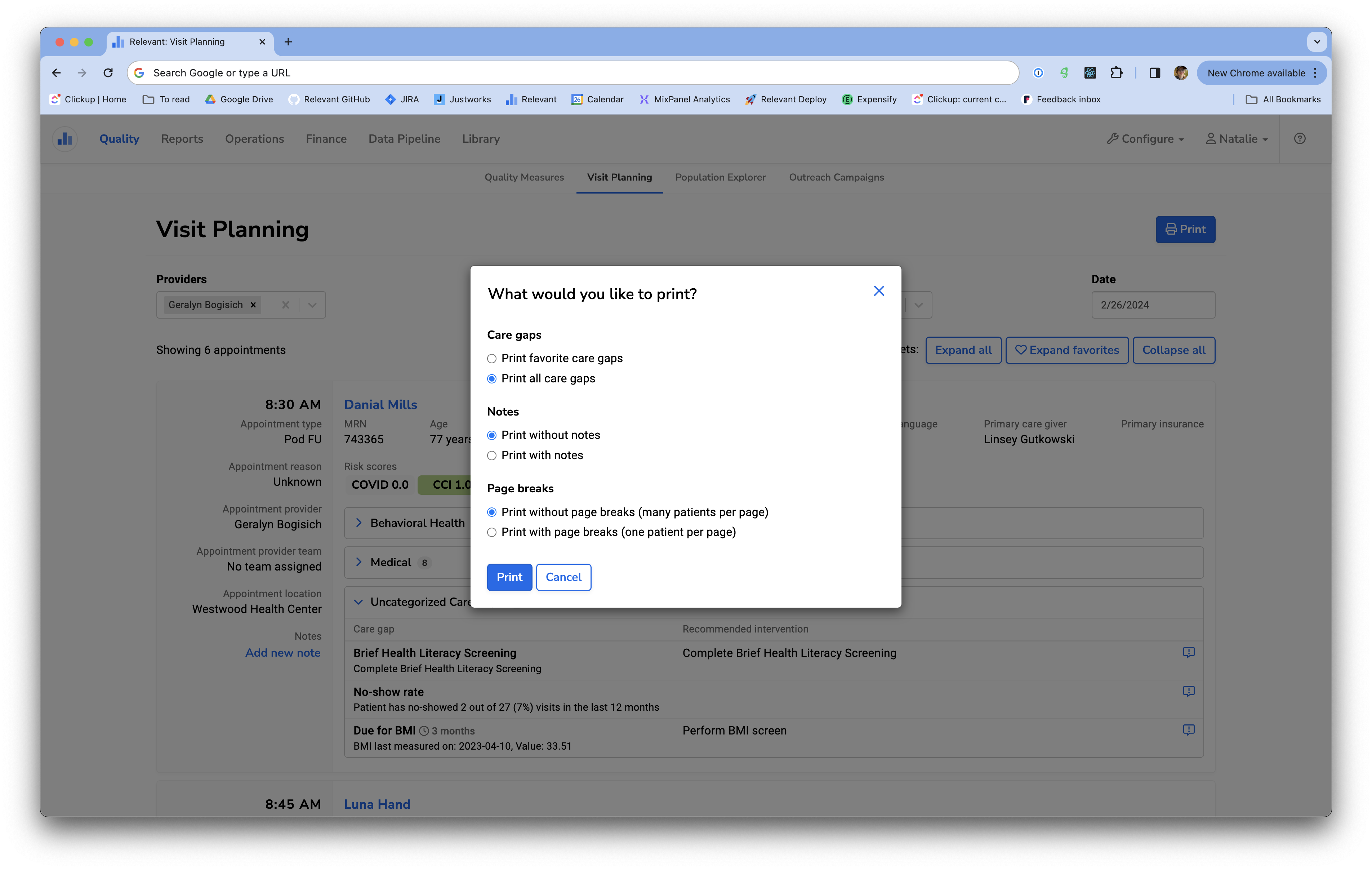
You can further optimize your printing by selecting customized print options.
Care gaps
- Printing favorite care gaps will only print the care gaps that you have favorited for each patient. You can change your favorites by clicking your name in the upper-right corner and selecting ‘My settings’.
- Printing all care gaps will print all the care gaps that a patient has, regardless of your favorites.
Notes
- Printing without notes will skip printing the notes for a given patient.
- Print with notes will print notes for a given patient.
Page breaks
- Print without page breaks will print as many patients on a page as possible. If the patient is at the end of the page, the print view may separate the patient information on more than one page.
- Print with page breaks will only print one patient per page.
- Note: page breaks may not function correctly when printing from Safari. If this occurs, try printing from Chrome, Firefox, or Microsoft Edge.