
Enable or disable a Quality Measure
Viewing the configuration of Quality Measures in the Data Pipeline requires the “View Data Pipeline” ability. Enabling or disabling a Quality Measure requires the “Modify Data Pipeline” ability.
You can see all your Measures via Data Pipeline > Measures. The enabled status is indicated in the “Enabled” column: enabled measures are checked and disabled measures are unchecked and grayed out. You can filter the list of measures by enabled status using the search bar ‘Status’ filter.
Enable or disable a Quality Measure
There are multiple ways to enable or disable a quality measure in the data pipeline so that measure results are visible in the Quality Measures module after the measure itself or the data pipeline runs.
Option 1: Enable or Disable multiple measures in the quality measure index screen using the toggles to the left of the measure run button.

Option 2: Enable or Disable in the individual measure view screen when you click into the measure from the index screen

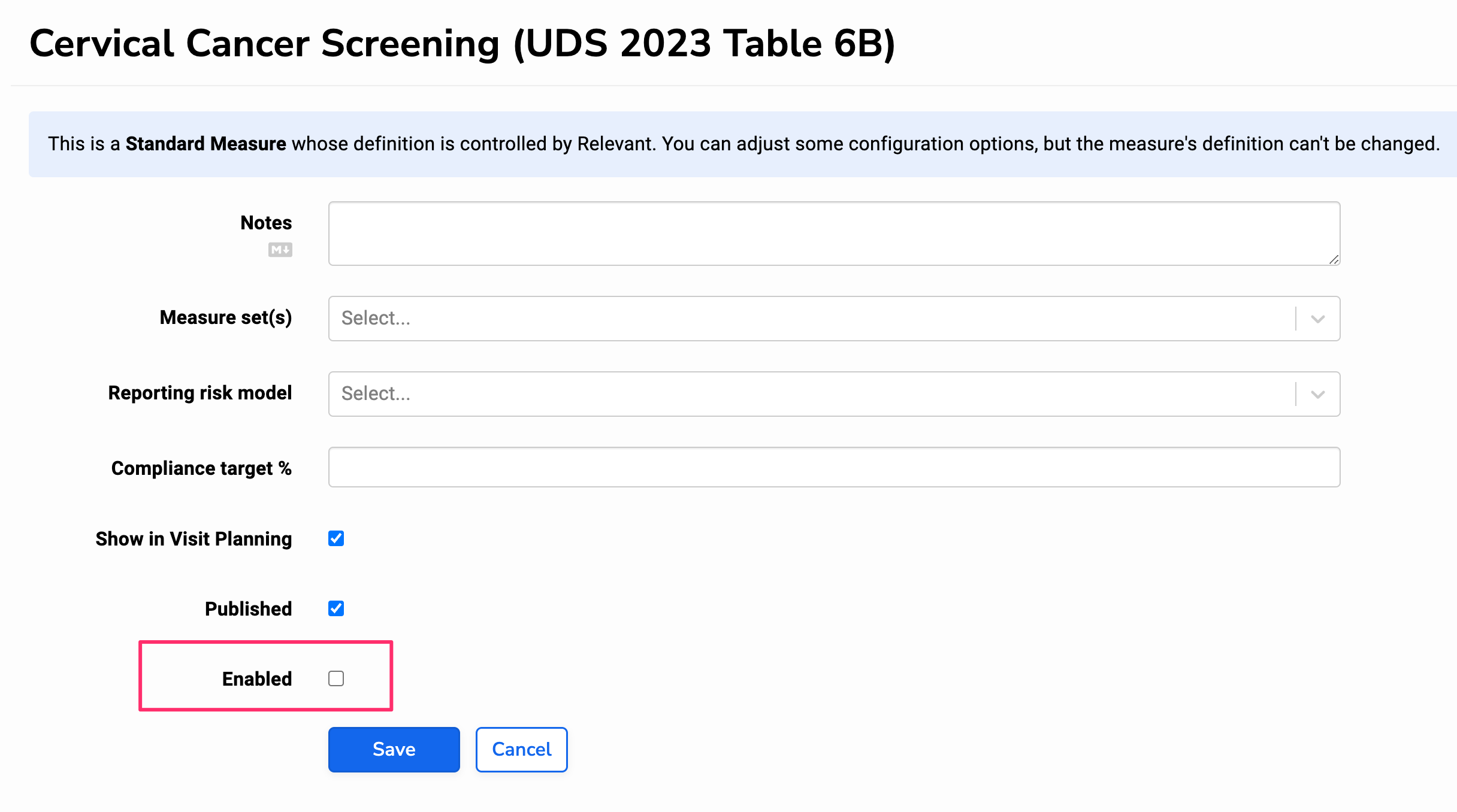
Option 3: Enable or Disable in the individual measure edit screen if you are in edit mode of the individual quality measure. Enable the measure by checking the enabled checkbox. Disable the measure by unchecking the enabled checkbox. Make sure to save your changes to apply them.
When will the measure results show in the Quality measure module?
Run a measure after enabling to see the measure results immediately. Otherwise, this measure is now enabled to run with the next pipeline run which would typically be overnight. The quality measure should be available for viewing by the next day.