
Query Builder
In Population Explorer and Outreach, queries of patients can be built using a visual query builder as pictured below. The default query (though this can be changed) is an empty group of rules.

The query builder has the following tools:
-
Add rule
Add a rule, or filter, to apply to your list of patients. Rules can include demographics, visit information, and configurable data concepts, such as Care Gaps or Populations. Here’s the full list of rules currently available:
Care gap
Care gap set
Quality measure warning
Population
Provider team
Primary care giver
Primary insurance
Primary insurance group
Race
Ethnicity
Gender
Age group
Primary location
Not seen in the last
Latest visit after
Latest visit before
Had completed visit between
Has upcoming appointment between
COVID risk level
CCI risk level
Health Center
Individual rules can be negated or removed from the collapsed menu icon to the left of the rule.

Negating the rule in the image above would pull a list of patients who are NOT due for cervical cancer screening.
-
AND/OR toggle
This toggle changes the relationship between all rules within the associated group. An “AND” means that each rule in the group must be true in order for a patient to be a part of the query results, while an “OR” means that if any rule in the group is true, the patient will be a part of the query results. Compare the following examples:
The query below will pull patients who are due for all three screenings for cervical cancer, breast cancer, and colorectal cancer. Note that AND is selected, and that the word AND appears between all three rules.

Conversely, this next query will pull patients who are due for any of the three screenings. Note that OR is selected, and that the word OR appears between all three rules.

AND/OR rules apply to all rules within a group – they cannot be set to individual rules. In order to build more complex logic, you must add a new group of rules.
-
Add group
Adding a group allows you to create a new group of rules with its own AND/OR logic, nested within your main group. Since AND/OR logic applies to all rules within a group, adding a group allows you to create more complex logic in your query. For example, see the example below:
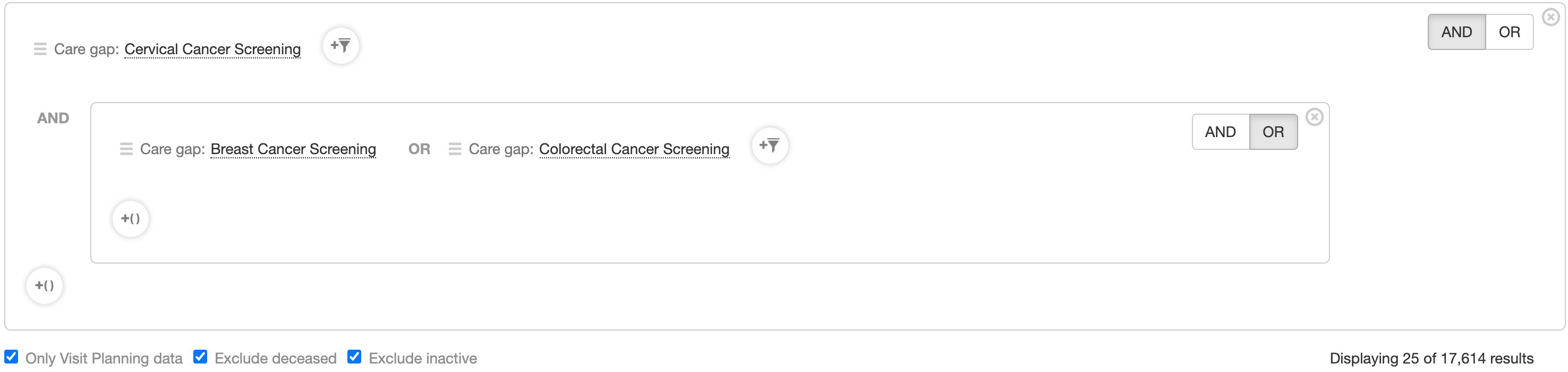 In the query above, the resulting patients will all be due for cervical cancer screening. They will also be due for at least one of breast cancer screening or colorectal cancer screening.