
Starting & Monitoring an Outreach Campaign
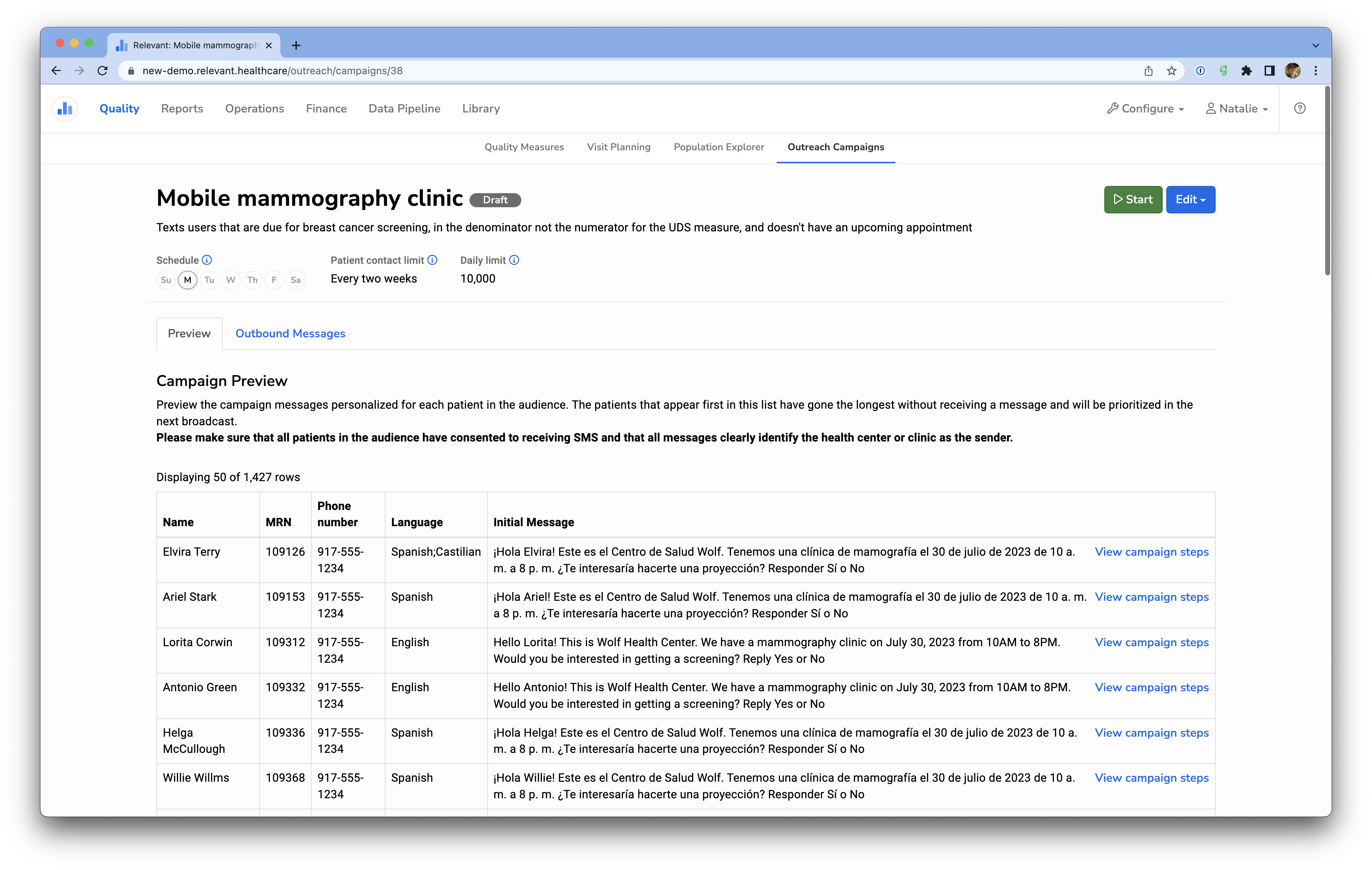
Once your campaign settings, audience, and campaign steps have been configured, you’re ready to start sending messages through Relevant Outreach. Open the campaign by clicking its name on the Outreach Campaigns screen. On this screen, you have access to two tabs: Preview and Outbound Messages.
Preview
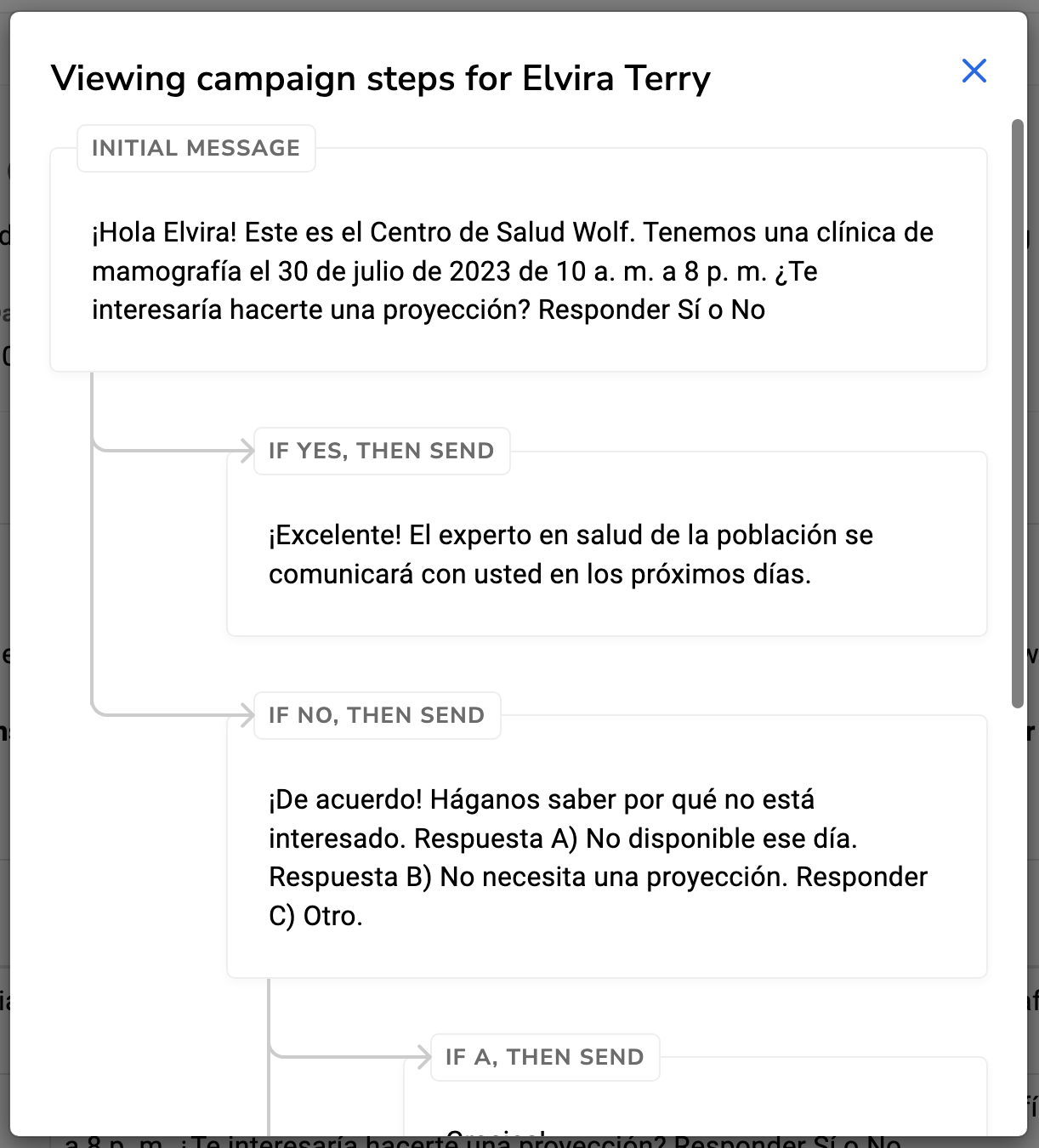
The Preview tab shows your audience in the order that the broadcast will be sent. You can preview the exact message that the patient will receive, including language and parameters, in the ‘Message’ column. To view the full Campaign Step tree for an individual patient, click ‘View campaign steps’
Starting a campaign
Once you click ‘Start’, you’ll be asked to confirm your broadcast. Please be sure that your campaigns comply with your health center’s policies regarding information disclosure via SMS. Note: once you start your campaign, you can no longer edit the Expected Patient Response. Changing it would break on-going conversations and make it challenging to interpret patient responses.
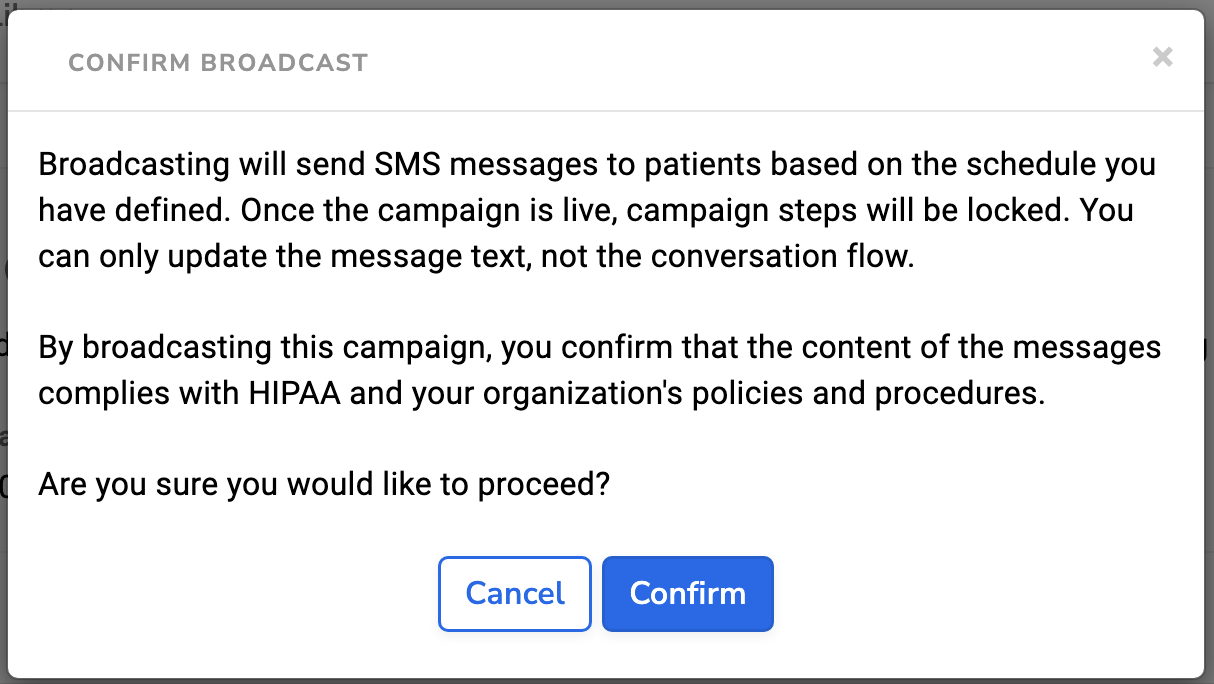
Relevant Outreach messages currently broadcast at 9AM PT/12PM ET. This means that clicking “Confirm” does not instantly send messages, but rather tells Relevant Outreach to send messages the next time 9AM PT/12PM ET rolls around.
Once a campaign is live, the ‘Start’ button will become a ‘Stop’ button. This will stop campaigns from sending out any future messages. Campaigns can be re-started later.

Outbound Messages
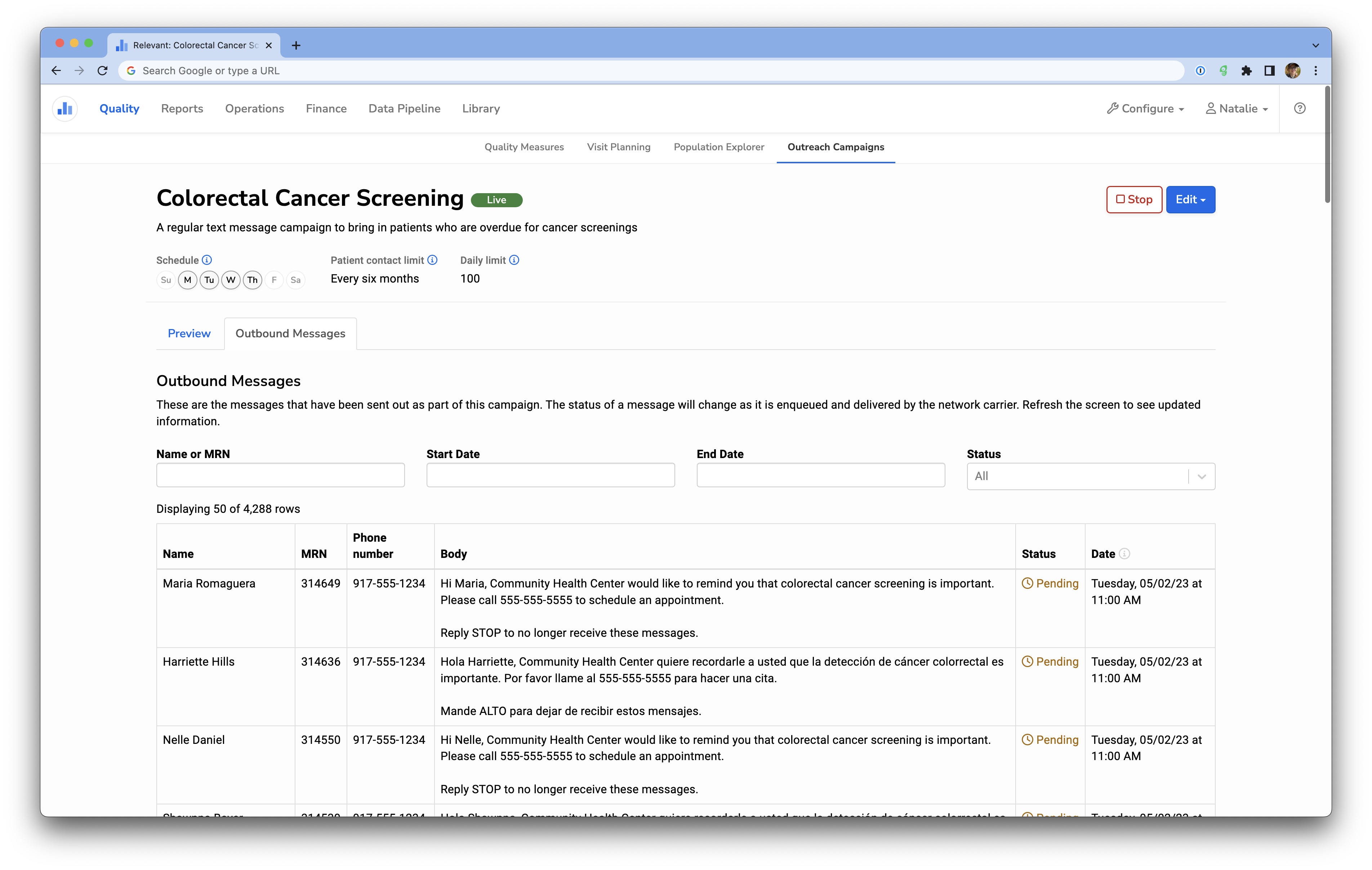
The Outbound Messages tab will show you data on messages sent from the campaign, including patient name & MRN, the body of the message, its delivery status and date. You can also filter the outbound message table by patient, date range, or delivery status.
You can view patient responses by importing the “[Outreach] Patient replies to campaign step X” report in the library to get a list of patient responses for a specific campaign step. The campaign_step_id can be found in the upper right corner of the Campaign Step.
Delivery statuses
Delivery statuses provide detail on where the text message lies in the delivery process. There are four possible statuses:
- Pending: The text messages are waiting to be sent to patients or are currently being sent.
- Sent: The text message was delivered to the phone’s carrier network, but Relevant did not receive a delivery confirmation. Sometimes this confirmation will never come, even if delivery was successful.
- Delivered: The text message was delivered to the phone’s carrier network and we received a confirmation that delivery was successful.
- Failed: The text message was delivered to the phone’s carrier network and we received a failure confirmation from the carrier. Relevant will provide the error code. You can look up the error code definitions if you would like to understand what went wrong.