
Managing Access to PHI in Relevant
Overview
Access to Protected Health Information (PHI) in Relevant can be restricted by user role. In addition, PHI access can be restricted to certain IP addresses for non-SSO logins.
Restricting PHI access by role
There are two abilities related to PHI in Relevant’s web application: “View PHI” and “Export PHI”. These abilities can be added or removed from various roles. The roles can then be assigned to individual user accounts. Read more about roles and abilities.
Configuring PHI access via roles
Configuring PHI access via roles requires the “Manage roles” and “Manage Users” abilities.
- Under Configure > Roles, click on the role you want to change.
- Check or uncheck the boxes for “View PHI” or “Export PHI”.
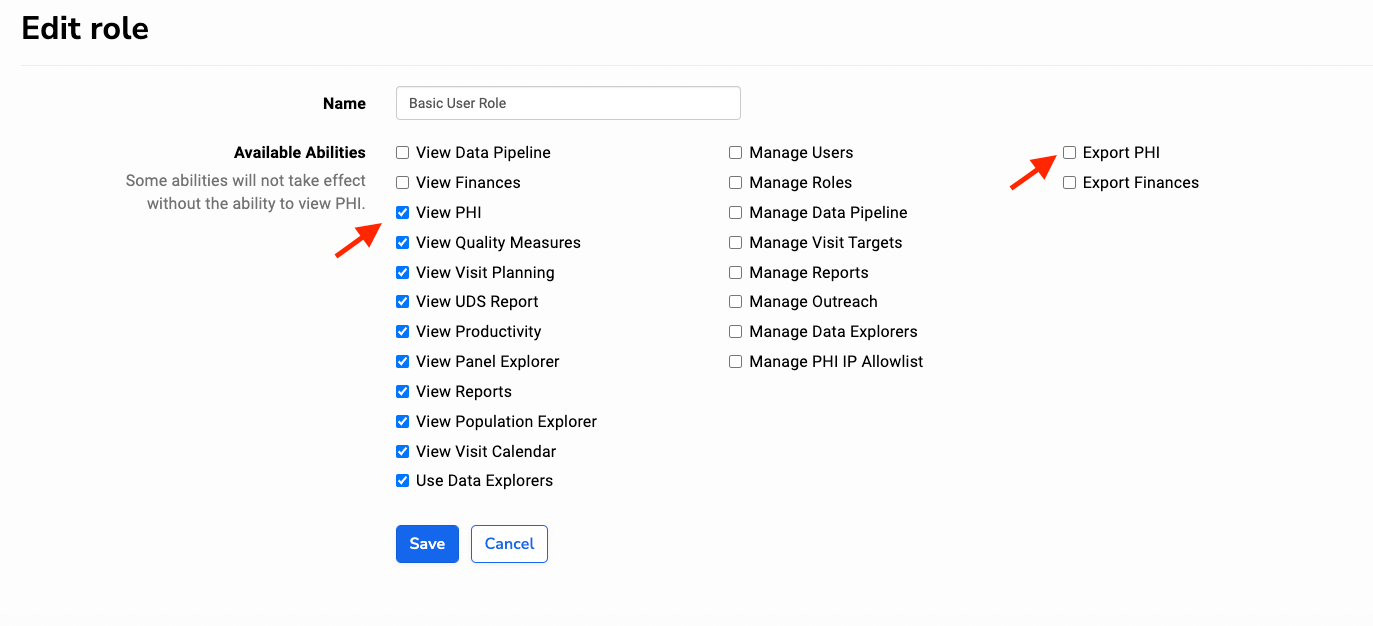
Note: “View PHI” a prerequisite to Export PHI. Users who need the ability to export PHI should have both the “View PHI” and “Export PHI” abilities. Having the “Export PHI” ability without the “View PHI” ability will not provide users access to PHI.
Note: The “View PHI” ability does not override PHI restrictions based on IP address, which are discussed below.
Note: Users with the “View Reports” ability who do not also have the “View PHI” ability will not be able to view reports which are marked as containing PHI.
Restricting PHI access by IP address
Note: IP address restrictions for PHI Access do not apply for users logging in via Single Sign-On. If your Relevant instance is configured to only allow Single Sign-On, maintaining this PHI IP allowlist is not recommended, since it will have no effect. See “Can we combine SSO with Relevant’s PHI IP allowlist?” in our Configuring Single Sign-On article for more information.
In addition to role-based restrictions, health centers can additionally restrict PHI access to an allowed list of IP addresses. If users are logging into Relevant with a username and password, we strongly recommend enabling this feature for an improved security and compliance posture. If users are logging in via Single Sign-On, IP address restrictions are bypassed.
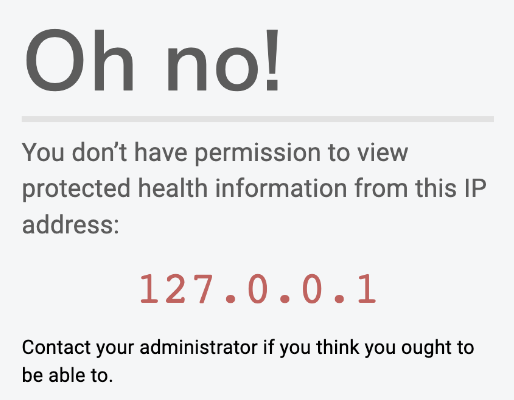
When IP-based restrictions are enabled, users can still access general information in Relevant from any IP address. Only screens that contain PHI—for example, a patient-level report—will be impacted. Users who attempt to access PHI from an unapproved IP address will see an error:
Enabling the PHI IP allowlist
Contact Relevant support to enable IP-based restrictions. We’ll ask you for an initial list of allowed IP addresses to get started, and will enable the PHI IP allowlist feature.
Adding or removing IP addresses
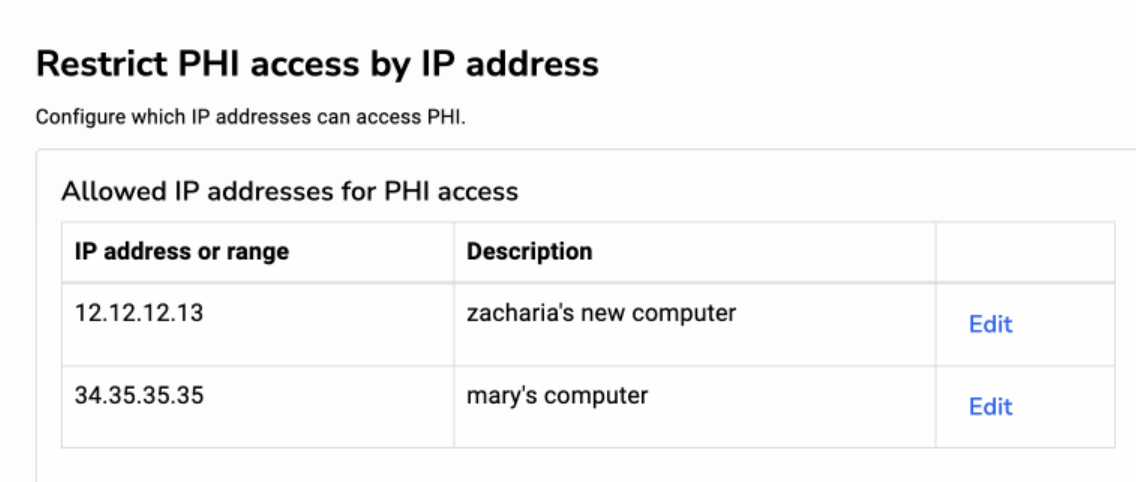
Once the PHI IP allowlist feature is enabled, users with the “Manage PHI IP Allowlist” ability can add, remove, or edit the list of approved IP addresses.
- Click Configure > PHI Access
- Edit the list as needed
Exemptions
Some health centers may wish to exempt specific users from IP-based restrictions for PHI access. This feature is disabled by default; contact Relevant support if you’d like to turn it on. Once the exemptions feature is enabled, the list of exempt users can be configured by going to Configure > PHI Access.
Note: exemptions can only be enabled once the PHI IP Allowlist itself has been enabled.

Note: Allowing PHI access from a certain IP address, or granting a user-based exemption, will not give a user access to PHI unless they also have a role with the “Read PHI” or “Export PHI” ability.
Note: for users connecting directly to the Relevant Data Warehouse with external tools, IP-based restrictions are required. The list of allowed IP addresses for direct or “backend” Data Warehouse access is maintained separately from what is discussed in this article. Contact Relevant support if you need to make changes to the list of IP addresses for data warehouse access.