
Connecting your querying tool to the Data Warehouse
Relevant is a database - and we give you full backend access. You can connect a variety of tools to it.
We can help you set up DataGrip. We use it ourselves and actively support it. Beyond that, health centers have successfully connected a wide variety of tools to Relevant.
How to connect to the Relevant data warehouse
This article describes how to connect directly to the Relevant Data Warehouse using SSL authentication. Each user of the database gets a set of certificates and keys that can be used to access the Relevant database from a set of approved IP addresses. No site-to-site VPN is required.
-
Reach out to your organization’s IT department to obtain the public IP address of the computer you’ve installed your querying tool on. You must provide the public IP address as you will only be able to connect to our database from a machine with one of the public IP addresses in the allowlist. Often, this is a virtual machine or computer physically located in the health center. (If you need to determine whether your IP is a public or a private address, this list of private IP address ranges here may be helpful.) Read the Restricting Access By IP Address help article for information on how to make decisions around connecting. If you’d like to allowlist a home IP address, the Working from Home section provides more info so your IT team decide how best to connect.
-
Ask your health center’s Relevant project lead to send an email to support@relevant.healthcare requesting connection to the data warehouse. If you’re unsure who your project lead is, email us at support@relevant.healthcare and we’ll loop them in. The email must include the public IP address from which you will be connecting to the data warehouse.
-
We will respond by sending you four file attachments and a username via encrypted email. These files contain secure information and should be treated as confidential. More info can be found in the postgres documentation and a guide to SSL authentication.
-
Follow the steps for your query tool. The steps are a little different based on the querying tool you installed so follow the one for your query tool. If you are using a querying tool that is different from the ones we have set-up instructions for, reach out to us at support@relevant.healthcare and we can help you out.
Don’t see your tool listed? Any tool or programming language that can connect to a database with SSL certificates can generally connect to Relevant. Setting up or maintaining these connections is beyond the scope of what Relevant can support. But if you would like to have a discussion about it, we can schedule an Engineering Consultation for an hourly rate to help you get started.
Configuration
Adjusting permissions on macOS
If on macOS, then you’ll need to adjust the permissions on two of the files so that your database program will be able to use them.
- Right click on the client.key file and select “Get Info.”
- Unlock the file settings so that you can make changes:
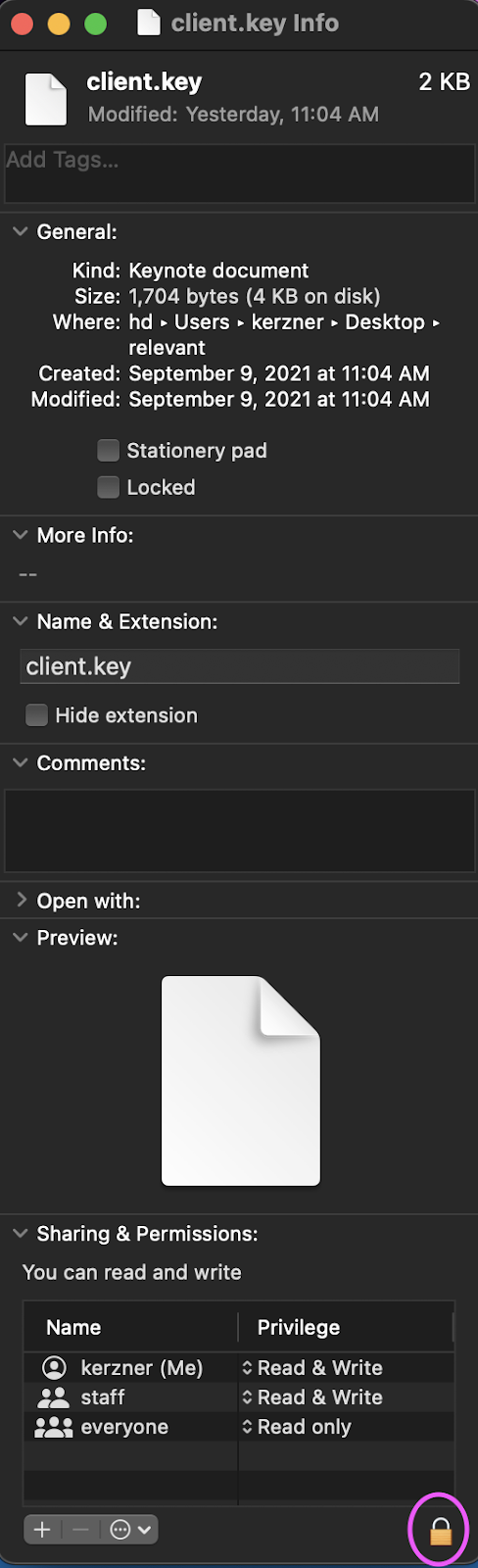
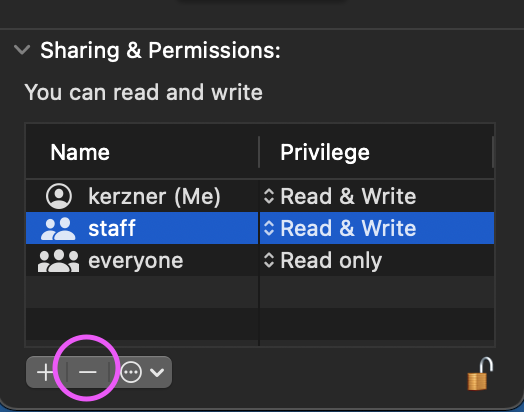
- Adjust the sharing permissions so that only you can read the file. Remove any groups that have permissions:
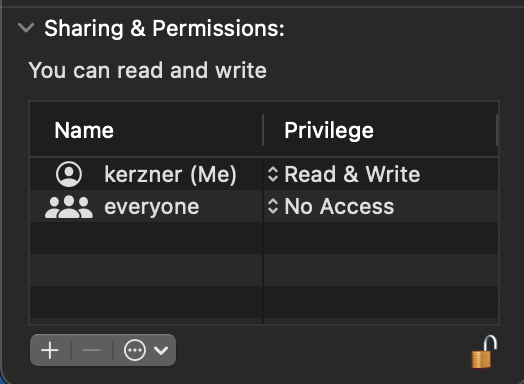
- Change the permissions of “everyone” to “No Access”
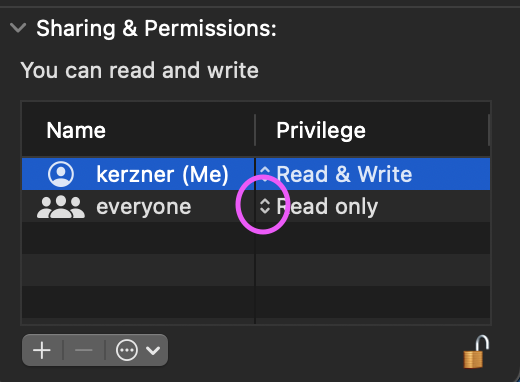 .
. 
Do the same thing for the client.pk8 file.
- Continue to the setup instructions for the software of your choice.
Troubleshooting
Here are a few common errors that we’ve seen while setting up database connections. Your health center’s IT department should be the first resource you use for help; most of the errors we’ve seen are fixed by adjusting the settings of the health center’s firewall.
An error similar to “connection timeout”
The most common reasons for a connection timeout are:
- Problem: You are not connecting from the IP address that we’ve whitelisted.
-
Solution: make sure your IP address matches the one that we’ve added to our whitelist by using a tool like https://www.whatsmyip.org/. Ask your IT department if you are unsure about whether you’ve provided a public, static IP address to us.
- Problem: Your organization has a firewall that is blocking connections to our server.
- Solution: check with your IT department that they are allowing traffic from your computer to the IP address of your Relevant data warehouse on port 5432.
- (Note: if you don’t know the IP address of the Relevant data warehouse, you can use a website like https://whatismyipaddress.com/hostname-ip to look it up. Where it asks for “hostname”, provide the URL of your Relevant web application, e.g. healthcenter.relevant.healthcare.)
An error similar to “certificate expired”
- Problem: We issue certificates that are valid for one year. Your certificates may have expired.
- Solution: email support@relevant.healthcare and ask for new SSL certificates.
An error similar to “private key file has group or world access; permissions should be u=rw (0600)”
- Problem: your private key is visible to anyone else who is using your computer
- Solution: see adjusting permissions on macOS above
Troubleshooting these connections often involves things that are very specific to the health center’s setup and is not part of our standard customer support. We suggest you ask your IT team first as they are more likely to be able to help. If you want us to help try to troubleshoot, YMMV but we can provide an Engineer Consultation to see if we can get you unstuck. It costs $350/hour.