
Troubleshooting data acquisition problems
Data Acquisition is the first step of the data pipeline that pulls data from the EHR, cleans it up, and makes it available for reporting and analysis in Relevant.This article presents tips for diagnosing and resolving common data acquisition problems.
Note: to access the areas of Relevant discussed in this article, users must have the “View Data Pipeline” ability. To edit pipeline configuration, users must have the “Manage Data Pipeline” ability.
Find the error details
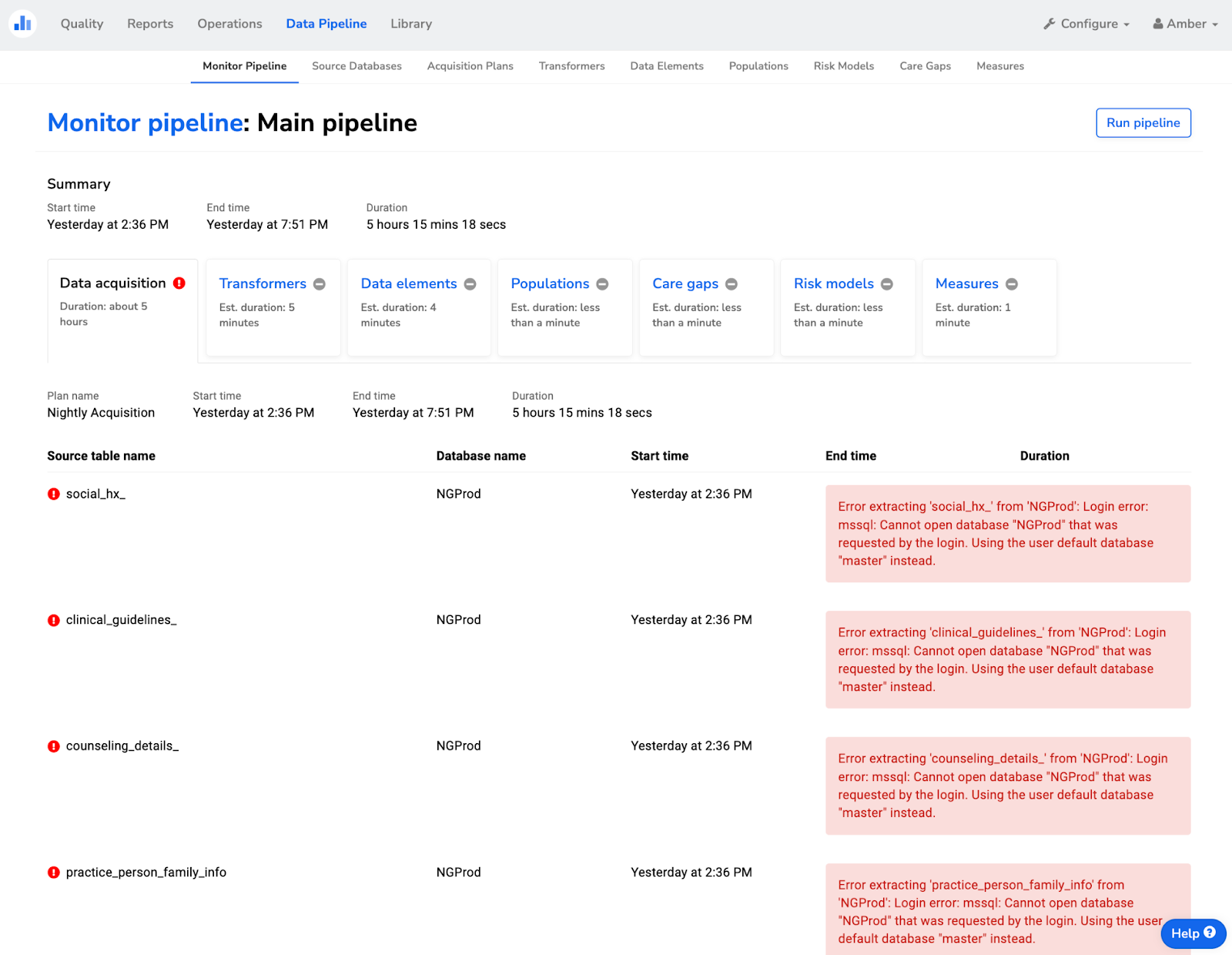
When troubleshooting, first locate the details of the error, which can be viewed within Relevant. Navigate to the “Monitor Pipeline” screen, then click one of the “Details” buttons to see the details of each step of a recent pipeline run. You’ll see a screen that looks similar to this, with details of the data acquisition in the first tab. Any errors will be displayed in red:
Common failures
Below, we discuss a variety of common scenarios that cause data acquisition to fail, along with tips for resolving the problem.
All tables failed
Cannot open source database
This is the most frequent type of data acquisition failure; typically, it means Relevant was not able to successfully connect to the source database. In this case, the pipeline details screen will look something like the following, with the same error repeated for each table:
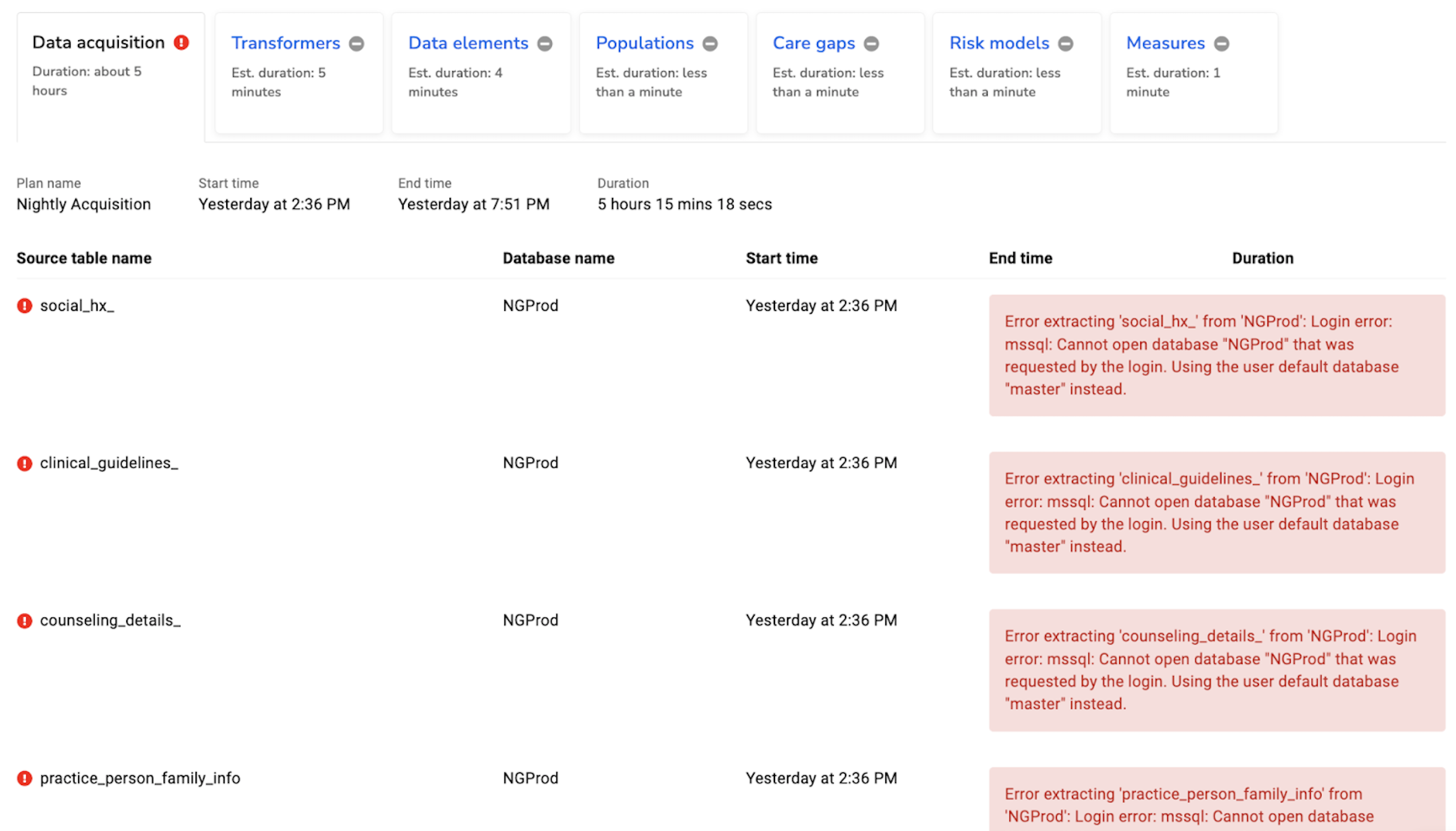
The above example shows errors for a Microsoft SQL Server source database that contains NextGen EHR data; the specific error text will vary for different EHRs and source database configurations. There are a few common reasons why this error can occur:
The source database is offline. The machine hosting the source database may be down; the source database service may be down; or the source database may be working, but unreachable from the machine where Relevant’s Data Acquisition Agent is installed due to a network configuration problem.
If the source database is offline, the health center’s IT department or the IT vendor that manages the source database will need to troubleshoot. ( Note: For some eCW cloud customers, Relevant is the vendor that manages the source database; in all other cases, Relevant will not be a position to troubleshoot.)
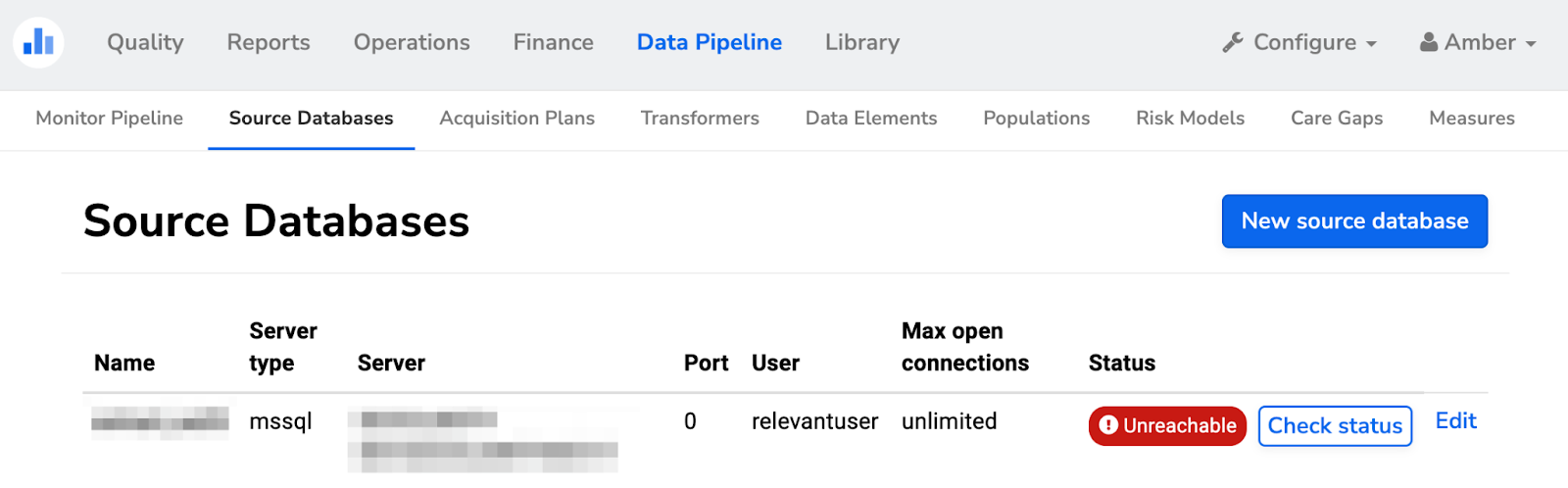
Invalid database credentials. The credentials used by Relevant to connect to the source database may be invalid; the credentials may have been removed or expired; or the permissions granted to these credentials may have been downgraded.
If the database credentials are invalid, the health center’s IT department or the IT vendor that manages the source database will need to troubleshoot. If necessary, the credentials used by Relevant to connect to the source database can be updated on the “Source Databases” screen.
To check whether a problem with the source database connection has been resolved, clickthe “Check Status” button on the “Source Databases” screen:

Table does not exist
If all tables in an acquisition fail with an error that looks similar to Error extracting 'document' from 'mobiledoc': table does not exist, then it could mean that the user account does not have access to read tables in the database. The health center’s IT department or the IT vendor that manages the source database should grant read access to the user account specified in the source database configuration.,
A specific table failed
If most of the data acquisition succeeds but one table fails, there is likely a more specific problem. Check the error text by going to the Pipeline Monitor screen, as discussed above; this will provide clues as to the fix.
Error: “Table does not exist” or “Column does not exist.” A common cause of this error is a misspelling in the name of a table or column. Double check spellings for the table that failed in the Acquisition Plan configuration.
Error: “Unsupported data type.” The acquisition attempted to acquire a column that has a data type in the source database that is not supported by Relevant. (For example, image and blob columns are not supported.) In the Acquisition Plan configuration, try explicitlyspecifying which columns to acquire for this table, and omit any columns with unsupported data types.
The data acquisition times out
If the error text indicates a timeout during the data acquisition, the most likely cause is that another process interfered with Relevant’s ability to query the source database. For example, if the source database begins a “restore” process while the data acquisition is running, a timeout will result.
To resolve this issue, ask the health center IT team or the vendor managing the source database to examine the source database logs. Check for any processes that were running at the same time as the data acquisition, and disable those processes for the next pipeline run.
The data acquisition does not run at all
If the data acquisition does not run at all, the Data Acquisition Agent is most likely offline.Check its status in the“Data Acquisition Agent status” section of Monitor Pipeline screen, as pictured below:

When the DAA status says “Offline”
The DAA is installed as a service that is configured to restart automatically when the jump box restarts, but it can go offline if the service is interrupted. If the DAA status shows as offline, there are several steps you can take to troubleshoot.
-
Check whether the machine that hosts the DAA is online: If the machine is unavailable, the DAA will automatically come back online when the machine is restarted.
-
Check Services to see if the DAA is running: The machine that hosts the DAA may have killed the DAA service, which runs as a background process, or the DAA service may have crashed. You can manually restart the DAA in Windows Services. Search in the list of services for Relevant Data Acquisition Agent or the name that your health center used when installing and click Start to restart the DAA.
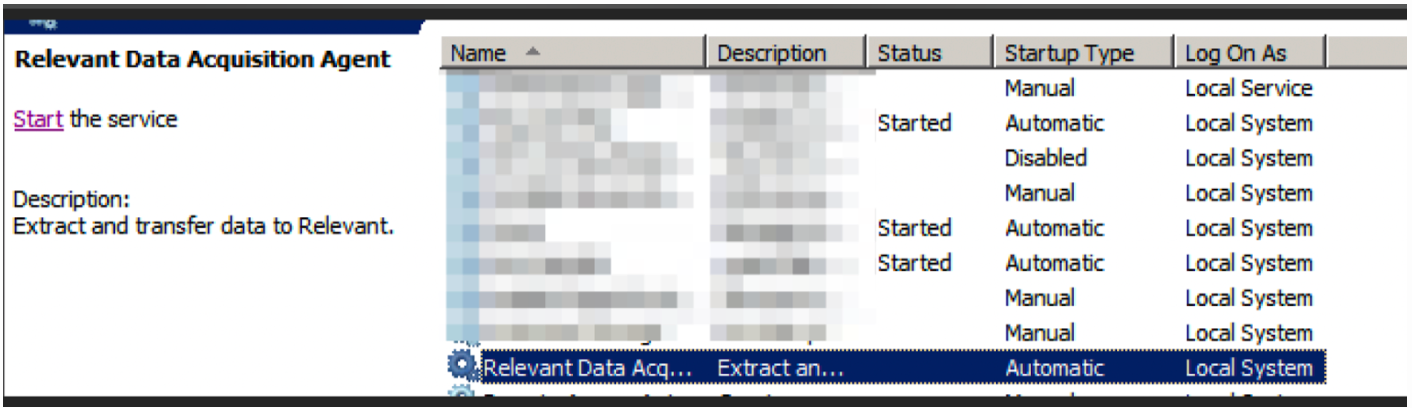
Once the service restarts, the status will change to Stop the Service.
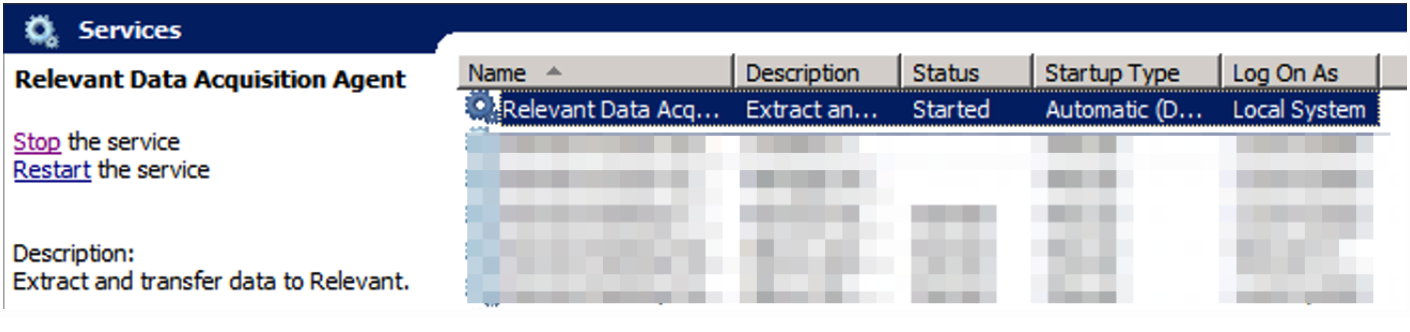 The DAA should now appear as Online in the Monitor Pipeline page.
- Check whether firewall settings are blocking access: Ensure your firewall and DNS settings allow
http://data-acquisition-agent-releases.storage.googleapis.com/and your Relevant domain, something likehealth-center-name.relevant.healthcare.
Determining the latest status of the pipeline
The DAA reports its status back to Relevant’s server every minute. Refresh the Monitor Pipeline page to see the current status in the Latest status column.
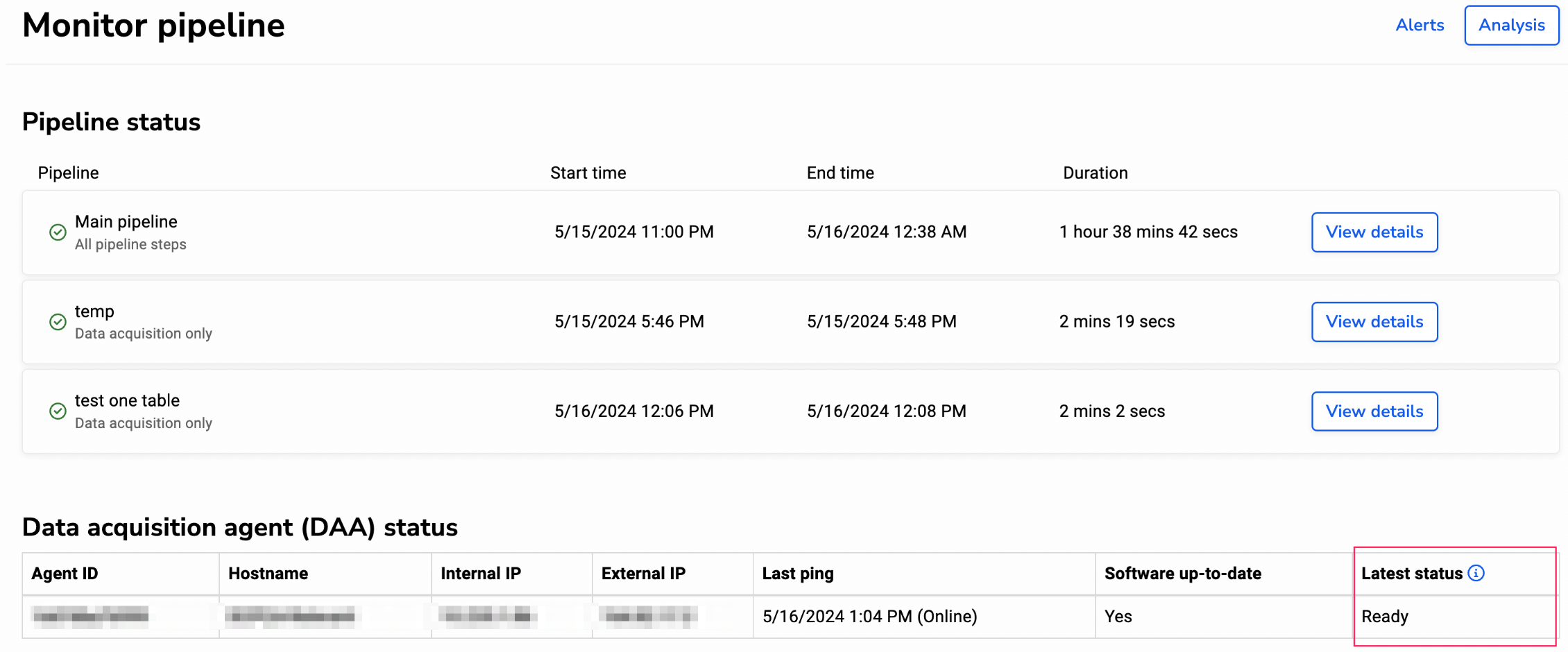
What do these statuses mean?
Ready- The DAA is idle and ready to run acquisition plans.Restarted- The DAA process has just rebooted, likely from the jumpbox restarting or from exceeding memory limits. If this happens repeatedly during acquisitions, try adjusting the database’s maximum number of open connections.Running acquisition- The DAA is actively running an acquisition plan.
Note that the pipeline may appear to be “cycling” but not actively acquiring tables if the acquisition was interrupted and did not receive an update from the server. The Latest Status column is the best indicator of whether the DAA is ready or currently running an acquisition.
Manually restarting the pipeline
Once the DAA is back online, you may wish to restart data acquisition before the next scheduled start time. Acquisition can be manually started by editing the plan under Acquisition Plans and updating the time so that it is scheduled several minutes into the future. You must have the Manage Pipeline ability to start the pipeline.
To manually kick off the pipeline:
- In Data Pipeline > Acquisition Plans, select the main acquisition and click the Edit button in the top right
- Change the Schedule to the time you wish to run the pipeline using CRON format and save your change. For example:
45 10 * * *= Every day at 10:45 AM* 15 * * 1-5= Monday thru Friday at 3:00 PM
You can use crontab guru to generate cron statements.
Note: It is not necessary to change the day (e.g. * * *) when temporarily rescheduling the start time.
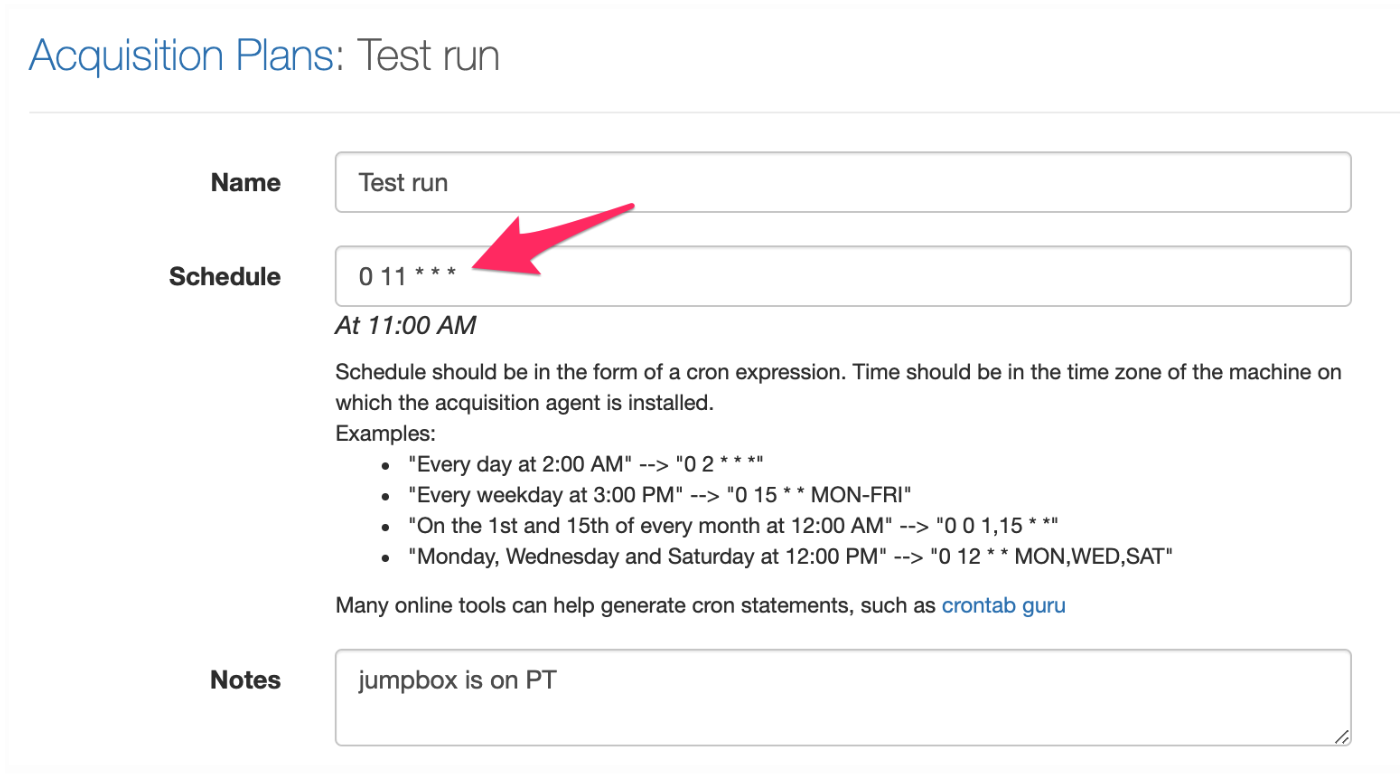
We recommend copying the original schedule time into the Notes field when updating so it can be pasted back when reverting to the original start time. You can confirm the pipeline started by the “cycling” status of the main acquisition on the Monitor Pipeline page. You may need to refresh the page to update the status.
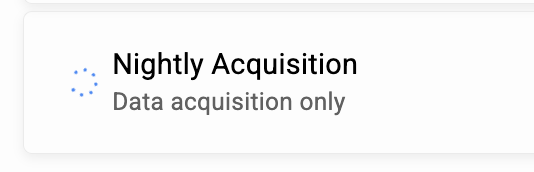
Don’t forget to change the start time back to your regularly scheduled start time. Once the pipeline has started, you can immediately reset the schedule back to your regular start time without impacting the currently running acquisition.
If the pipeline does not kick off:
- Verify that the DAA status is online
- Make sure the start time is in 24 hour format
- Adjust the start time to allow several minutes delay
If you have questions or would like additional assistance, reach out to us at support@relevant.healthcare and we’ll be happy to help!