
Modifying tables in your acquisition plan
Users with the Manage Pipeline ability can add, delete or rename tables in existing acquisition plans.
To add a table to an acquisition plan
Click on Manage Pipeline > Acquisition Plans and select the Acquisition Plan you wish to modify.
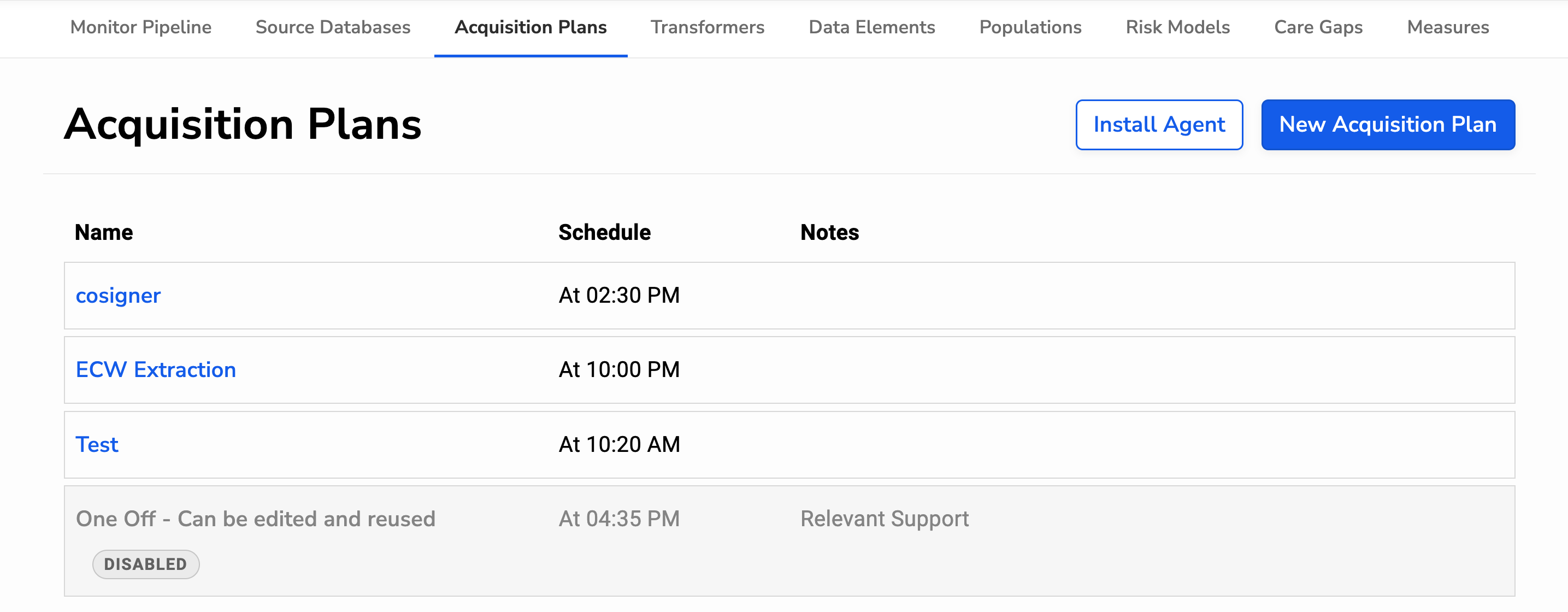
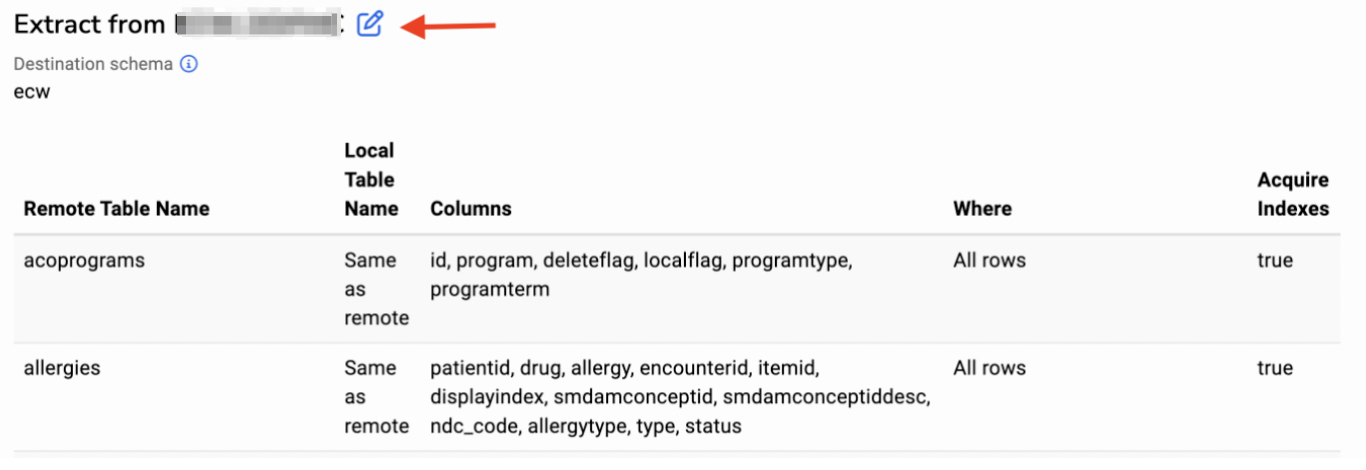
Scroll down to the Extract section that lists the tables and click on the Edit icon.
Click on the Add Table button to insert a new row and add the name of the table you wish to add. If you’d like to add more than one table, click on Add Table again to insert another row until you have entered rows for each table you wish to add.
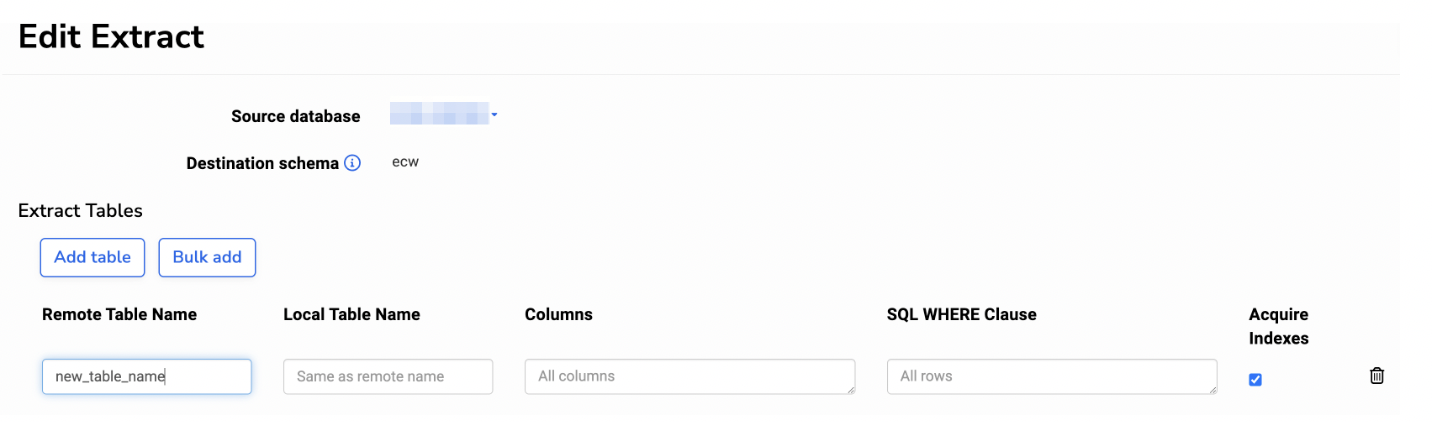
When you have added a row for each new table, scroll to the bottom of the screen and click Save. The changes will go into effect the next time the Data Acquisition Agent runs.
To modify a table in your acquisition plan
You can modify a row by editing the Extract and updating the information in that table’s row. You may want to modify a table name if there is a typo in the table name, if you want to include specific columns or if you want to limit the table to rows that meet specific criteria. For instance, you may want to reduce the size of a very large table by limiting the timestamp to records with a timestamp within the last year. Note that the WHERE clause is implicit and not needed in your filter.

To remove a table from your acquisition plan
Edit the extract and select the delete (trash) icon at the end of the table name row.

Be sure to save your changes by selecting the Save button at the bottom of the table list.
Note that if you make a change to your acquisition plan that results in an error, it may interrupt your data pipeline. We recommend testing your change by creating a separate acquisition plan and adding the table along with any specific conditions if applicable. You can then run this test acquisition plan to verify that the table is pulled in successfully before adding it to the main acquisition.
For instructions on how to schedule a start time to kick off a test acquisition plan, view the section How can I manually restart an acquisition plan? in our Data Acquisition FAQ documentation.
For a demonstration walkthrough, view our training video on How to Add a Table to Your Nightly Data. If you’d like assistance, reach out to us at support@relevant.healthcare and we’ll be happy to help!