
Care Gaps
Care gaps are customized alerts that surface in Visit Planning and Population Explorer, showing what recommended interventions or tasks should be completed for each patient based on their EHR data. To manage care gaps, go to Care Gaps under the Data Pipeline menu.
Care gap properties and actions
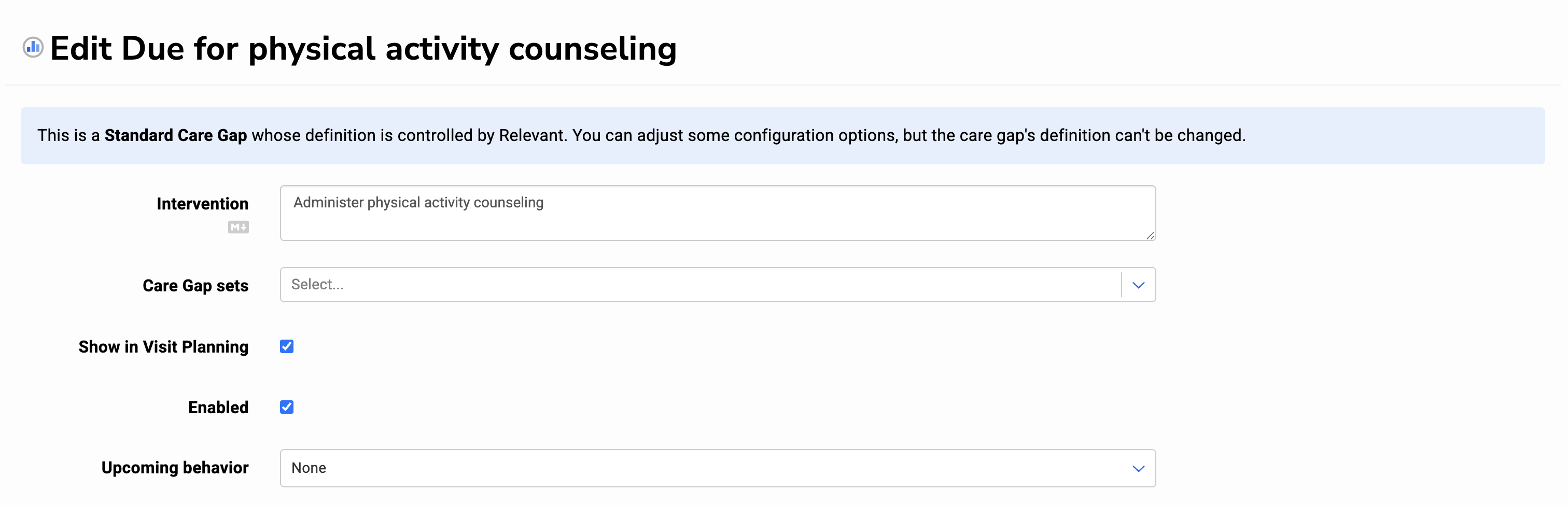
Each care gap has the following properties:
- Name - A short, descriptive name. This appears in Visit Planning (if shown).
- Description - A longer explanation, visible only in the Data Pipeline page. Use this to provide helpful context for other analysts.
- Intervention - Customize the recommended intervention shown in Visit Planning. Leave this blank to hide the recommendation.
- Care Gap Sets - Assign the care gap to one or more sets. You must first create the care gap set under Configure > Care Gap Sets.
- Show in Visit Planning - Use this check box to control whether or not this care gap appears in Visit Planning.
- Enabled - Enabled care gaps run every day during the data pipeline and appear in the app, while disabled care gaps are skipped during the data pipeline and are hidden.
- Upcoming behavior - Show care gaps in Visit Planning that will become due within the selected time frame.
- Search path - Database schemas from which the SQL will select tables - either from rdm schema by default (tables in other schemas must be prefaced with their schema name), or other schemas by default (tables in rdm must be prefaced with rdm).
- SQL - Write SQL logic to define the care gap.
- Last modified - Shows when the care gap was last updated and by which user.
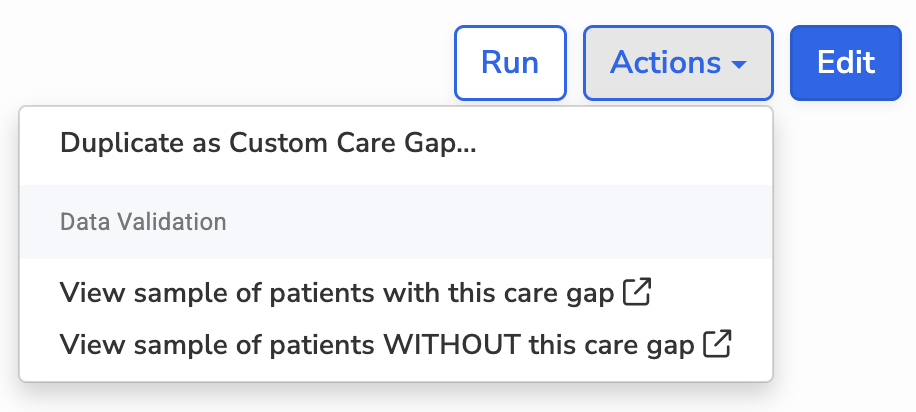
You can also:
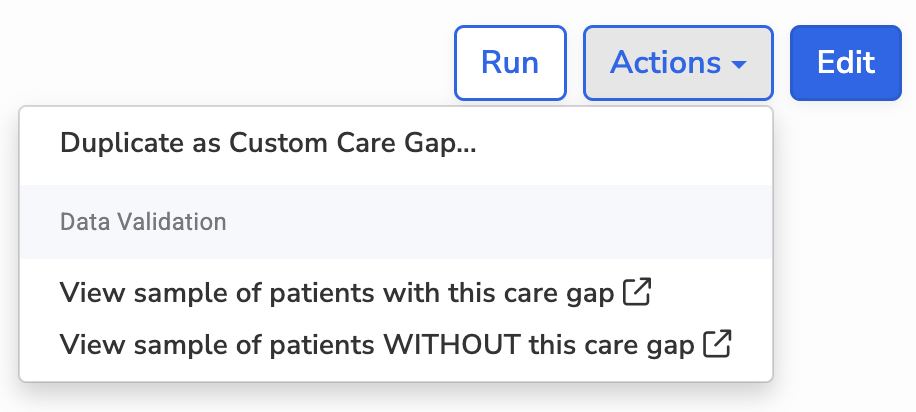
- Duplicate as a custom care gap - Clone a care gap (including standard ones) to customize it or create multiple versions.
- Run data validations: - View a random sample of 20 patients with this care gap
- View a random sample of 20 patients without this care gap
Standard Care Gaps
Relevant offers and maintains a selection of pre-built care gaps. You can duplicate these care gaps to create customized versions if needed.
The options to configure these care gaps is limited to:
- Assigning the care gap to care gap sets
- Change whether care gap shows in visit planning
- Enable/disable the care gap
- Setting upcoming behavior
Creating a custom Care Gap
To create your own care gap, click New Care Gap. Or if you’d rather start from an existing one, open the care gap and click on Actions > Duplicate as Custom Care Gap.
SQL tips
-
Each query should end in a single
SELECTstatement that only selects:patient_id(required)detail(optional): displays in Visit Planning to provide more information about the care gap, such as the date or result of the patient’s last screening
- Use
{{care_gap_date}}instead ofcurrent_dateto support upcoming behavior. - Use the ‘Run SQL test’ button to check your query for errors before saving to avoid data pipeline failures.